What Is the New Orders Page?
The New Orders page is your central hub for discovering and ordering backlinks on LinkPanda. It presents a curated catalog of publisher websites where you can place link insertions, guest posts, brand mentions, and other link types. From this single page you can browse sites, review their metrics, shortlist favorites, reject unsuitable ones, and place your order.
To reach this page, click New Orders in the left sidebar of your dashboard.
Understanding the Site Catalog
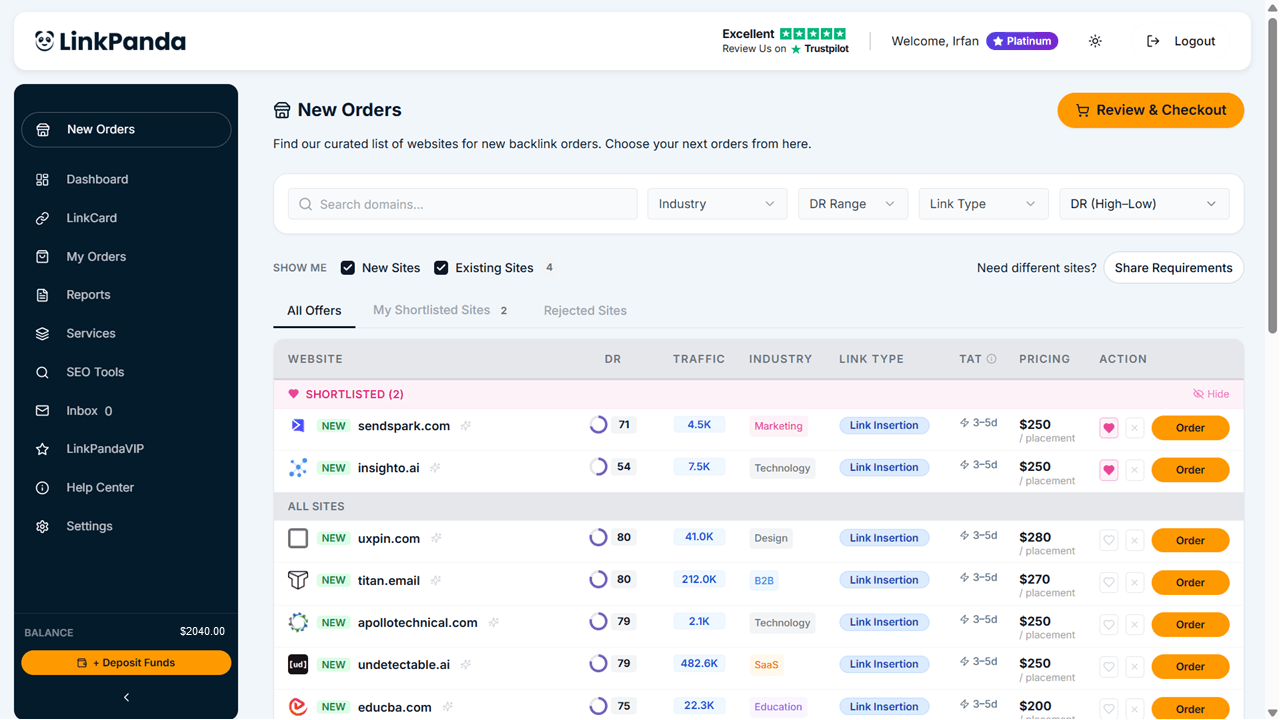
The main table displays all available publisher sites with key metrics at a glance:
Website – The domain name of the publisher. Sites labeled NEW have been recently added to the catalog.
DR – Domain Rating on a scale of 0 to 100. Higher DR typically indicates a more authoritative backlink.
Traffic – Estimated monthly organic traffic the site receives.
Industry – The primary niche of the site (for example: Technology, Marketing, SaaS, B2B, Education).
Link Type – The type of placement available, such as Link Insertion or Guest Post.
TAT – Turnaround time indicating how many days delivery typically takes (for example: 3-5d).
Pricing – Cost per placement in USD.
Action – The orange Order button adds the site to your cart. The heart icon shortlists a site; the X icon rejects it.
Filtering and Searching the Catalog
Use the filter bar at the top of the catalog to narrow down results. Search domains lets you find a specific site by typing its domain name. The Industry dropdown filters by niche so you find sites relevant to your audience. DR Range sets a minimum and maximum Domain Rating. Link Type filters by placement type. The sort control on the right reorders the catalog by DR, price, traffic, or other metrics.
New Sites vs. Existing Sites
Above the site table you will see two checkboxes labeled New Sites and Existing Sites. Toggle these to control which sites appear in the catalog. New Sites are publishers you have not previously ordered from and are marked with a NEW badge. Existing Sites are publishers you have ordered from before, useful when you want to repeat a successful placement. The number in brackets (for example: Existing Sites 4) shows how many are currently in the catalog.
Tabs: All Offers, My Shortlisted Sites, and Rejected Sites
Three tabs help you organize your research. All Offers shows the full catalog, with any shortlisted sites pinned at the top under a pink SHORTLISTED banner. My Shortlisted Sites shows only sites you saved with the heart icon, and the number in brackets reflects how many you have saved. Rejected Sites shows sites you marked with the X icon, hiding them from the main catalog to avoid clutter. You can undo a rejection at any time from that tab.
Viewing a Site’s Full Details
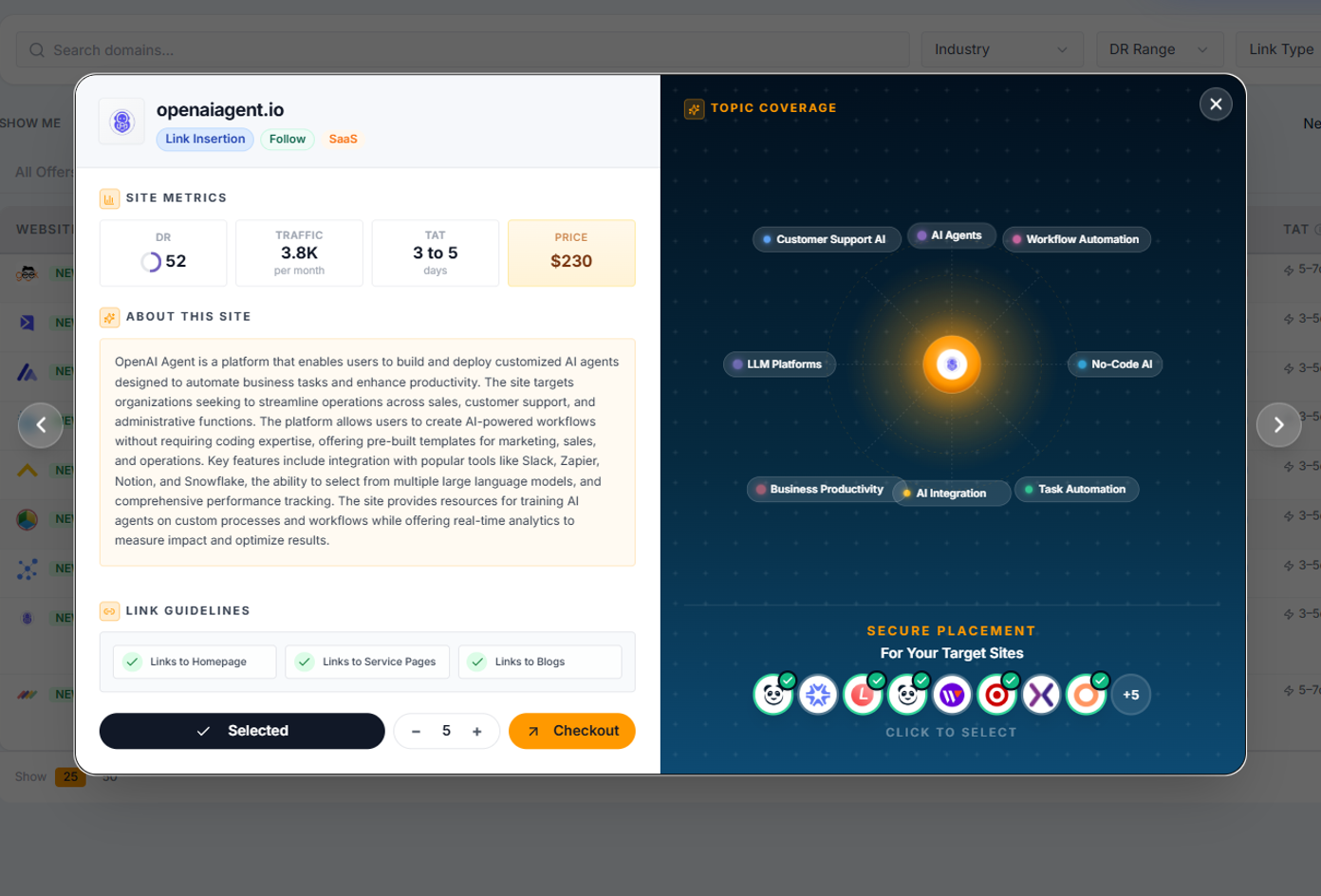
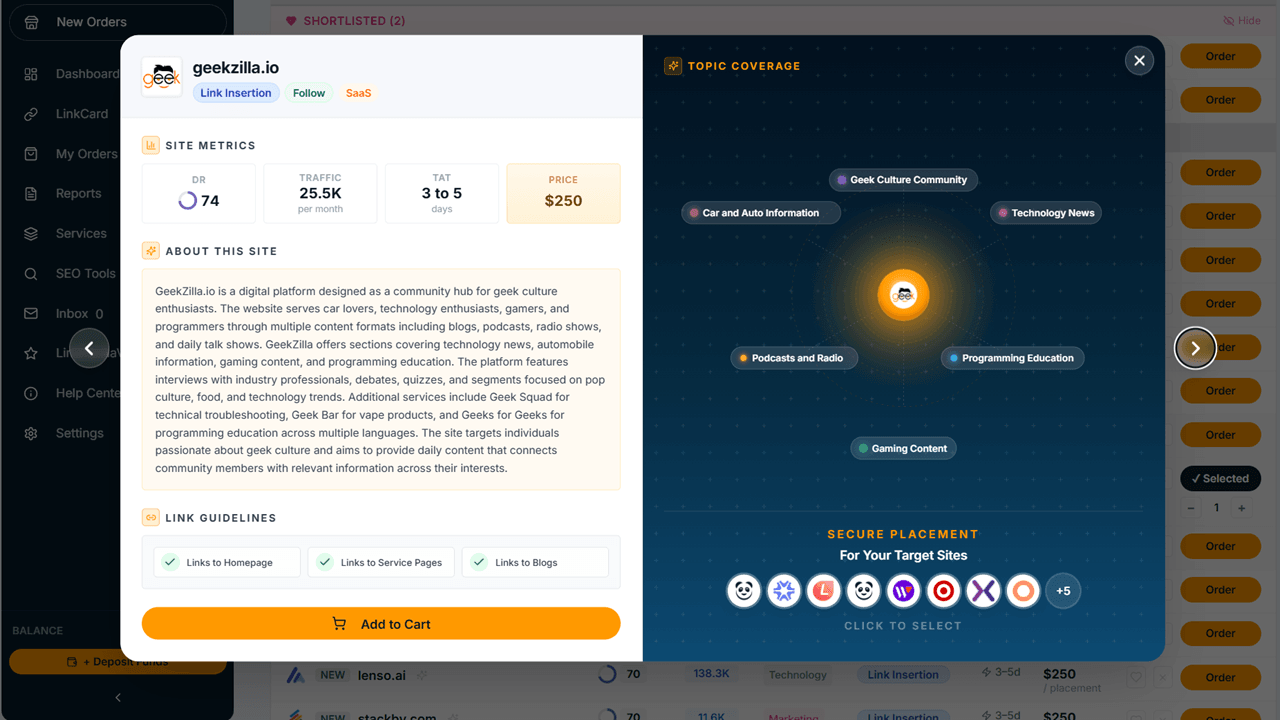
Click anywhere on a site row to open the site detail panel. This popup gives you a complete picture before ordering:
Site Metrics – DR, monthly Traffic, TAT, and Price displayed prominently at the top.
About This Site – A description of the site’s audience, content format, and topics covered.
Topic Coverage – A visual map showing the content categories the site covers, helping you assess topical relevance to your target URL.
Link Guidelines – Shows which link destinations the publisher allows, such as Links to Homepage, Links to Service Pages, and Links to Blogs. Ensure your target URL matches what is permitted.
Secure Placement For Your Target Sites – Shows which of your registered target domains are suitable for placement on this publisher. Click a domain logo to select it before adding to cart.
Use the left and right arrows in the popup to browse through other sites in the catalog without closing the panel.
Adding Sites to Your Cart
To order from a site, click the orange Order button in the row or Add to Cart inside the detail popup. The button changes to Selected with a checkmark once the site is in your cart. To order multiple placements from the same site, use the quantity + and – controls in the popup. You can also click the orange Checkout button directly from the popup to go straight to payment.
Reviewing Your Cart Before Ordering
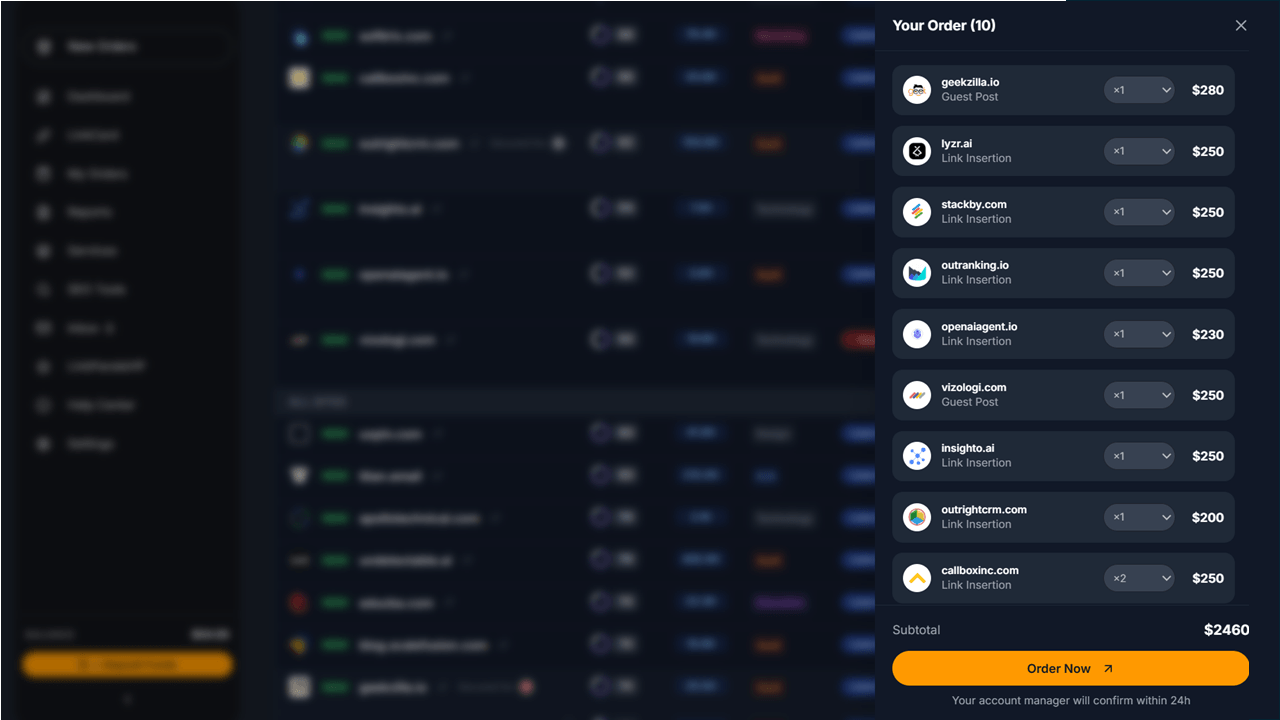
Click Review & Checkout at the top-right to open the cart panel. This dark panel lists all selected sites with their service type, quantity, and price. A subtotal is shown at the bottom. Click Order Now to confirm and submit. After submission, your account manager will review and confirm your order within 24 hours.
Need Different Sites?
If the catalog does not have what you are looking for, use the two buttons at the top-right of the catalog. Need different sites? opens a form where you can describe what you are looking for. Share Requirements lets you share your niche, DR requirements, and budget so your account manager can proactively recommend placements.
Your Account Balance
Your current account balance is shown at the bottom of the left sidebar. To top up before placing an order, click the yellow + Deposit Funds button. See the Deposit Funds and Account Balance guide for full details on adding funds to your account.
Need Help?
If you have questions about a specific site or need guidance selecting placements for your campaign, contact your account manager directly via Inbox in the left sidebar.