Overview
LinkPanda has two separate Placement Finder tools, each designed for a different stage of your link building workflow. One lives inside SEO Tools and is used for research before you place an order. The other appears inside the order submission form and helps you specify exactly where on a publisher’s site your link should go. This guide covers both.
1. Backlink Placement Finder in SEO Tools
The Backlink Placement Finder in SEO Tools is a research tool. Use it when you want to explore which pages on a particular website would be good candidates for a link placement, before you have decided to place an order.
How to Access It
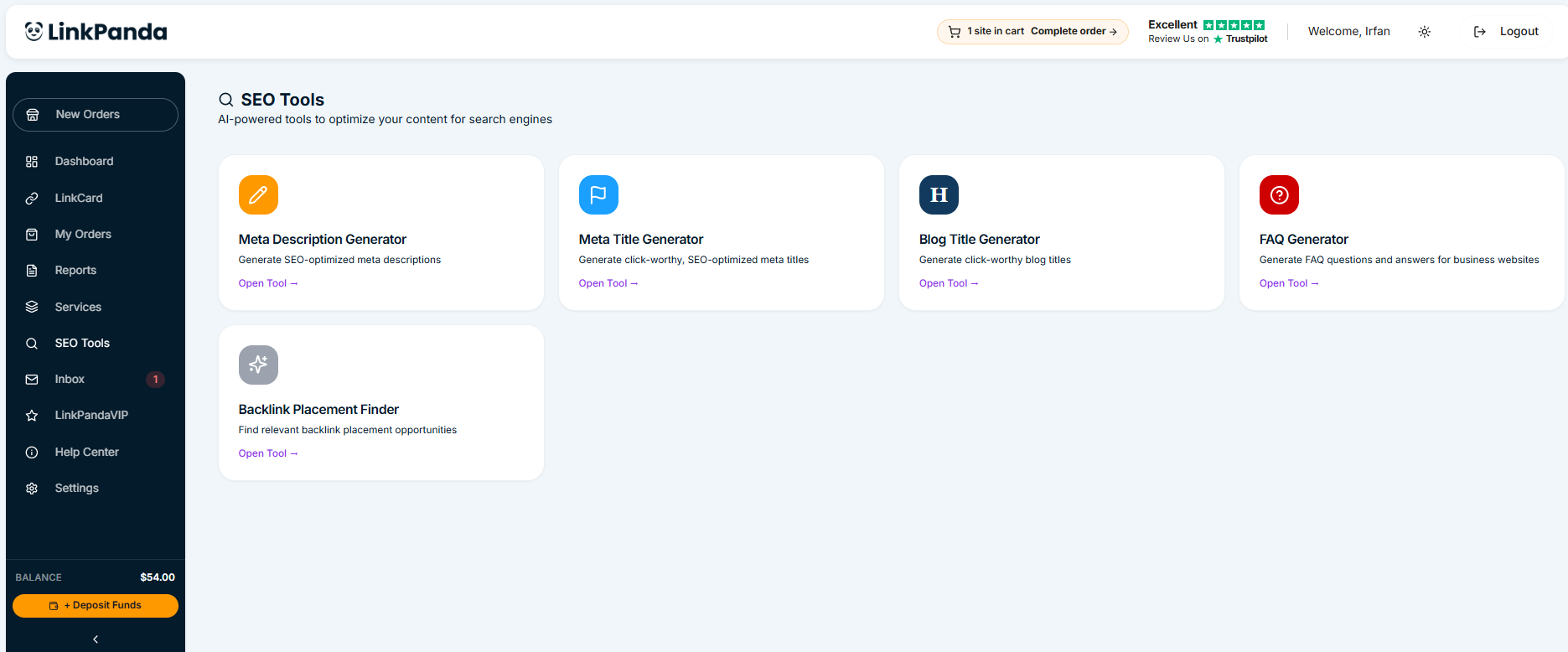
Click SEO Tools in the left sidebar. The SEO Tools page displays a set of AI-powered tools available to you. Locate the Backlink Placement Finder card, which shows the description “Find relevant backlink placement opportunities”, and click Open Tool.
What It Does
This tool scans a target domain and identifies existing articles and pages that are topically relevant to your target URL and keywords. It gives you a shortlist of placement opportunities on that site, so you can assess whether a domain is a good fit for your campaign before committing to an order. Use this during your prospecting and site selection stage to inform which sites you add to your cart on the New Orders page.
When to use this version: When you are evaluating publisher sites and want to confirm there is good topical content on a domain before ordering a placement there.
2. AI Placement Finder in Order Submission
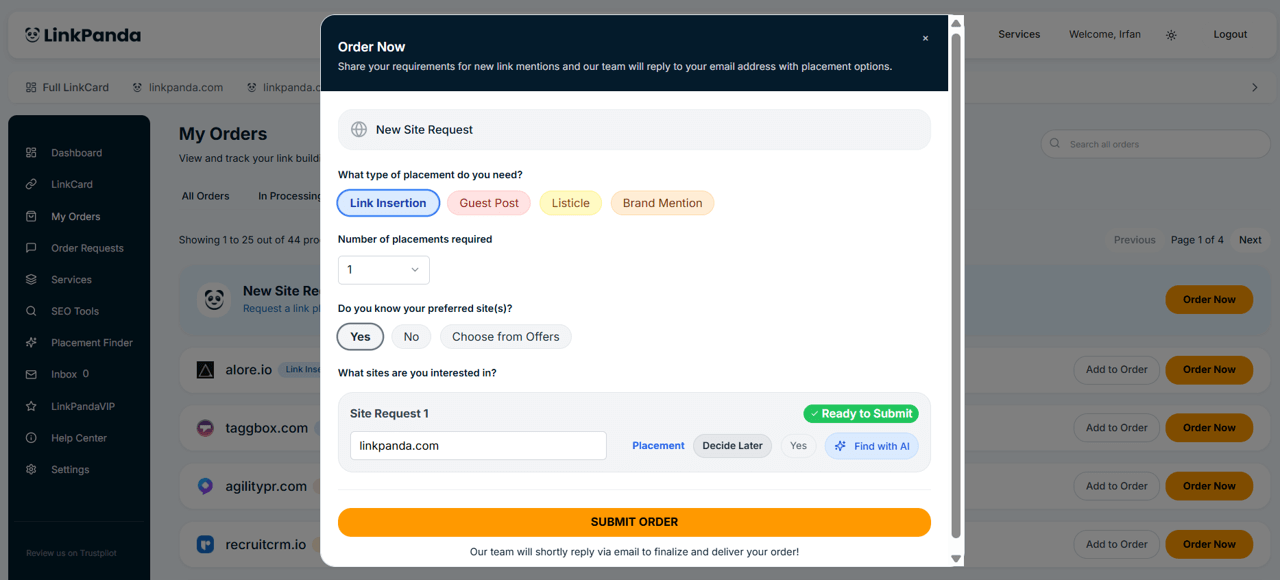
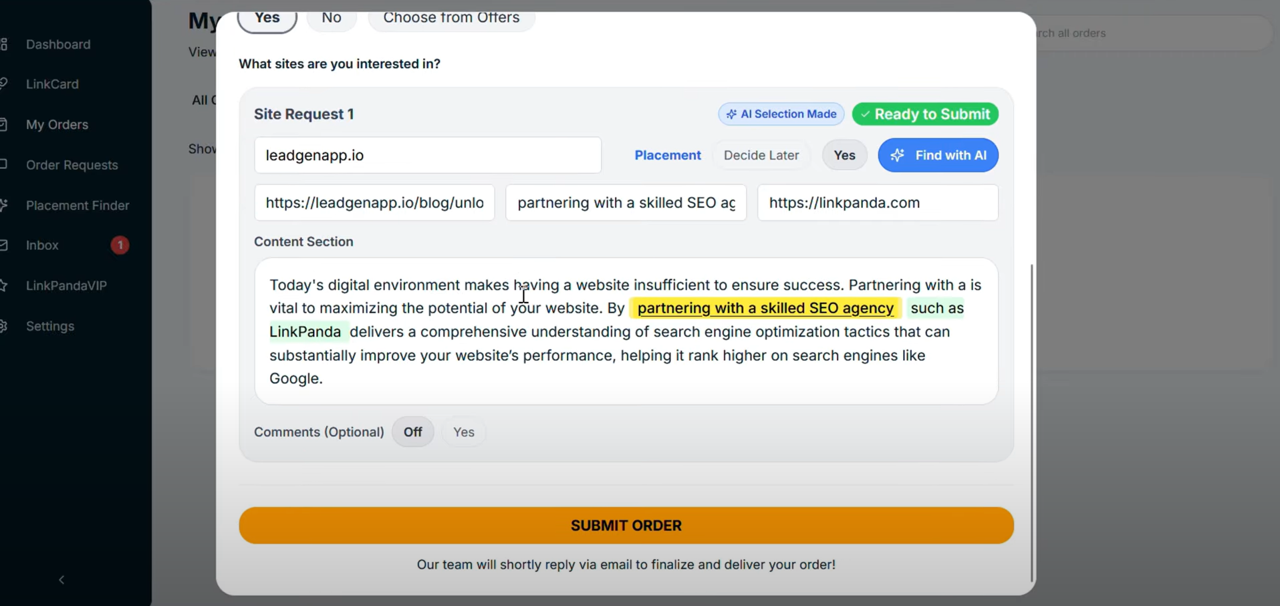
The AI Placement Finder in the order submission flow serves a different purpose. Once you have placed an order, LinkPanda needs you to specify a Live Link – the exact URL of the page on the publisher’s site where your link will be inserted. This tool finds that specific page for you automatically.
How to Access It
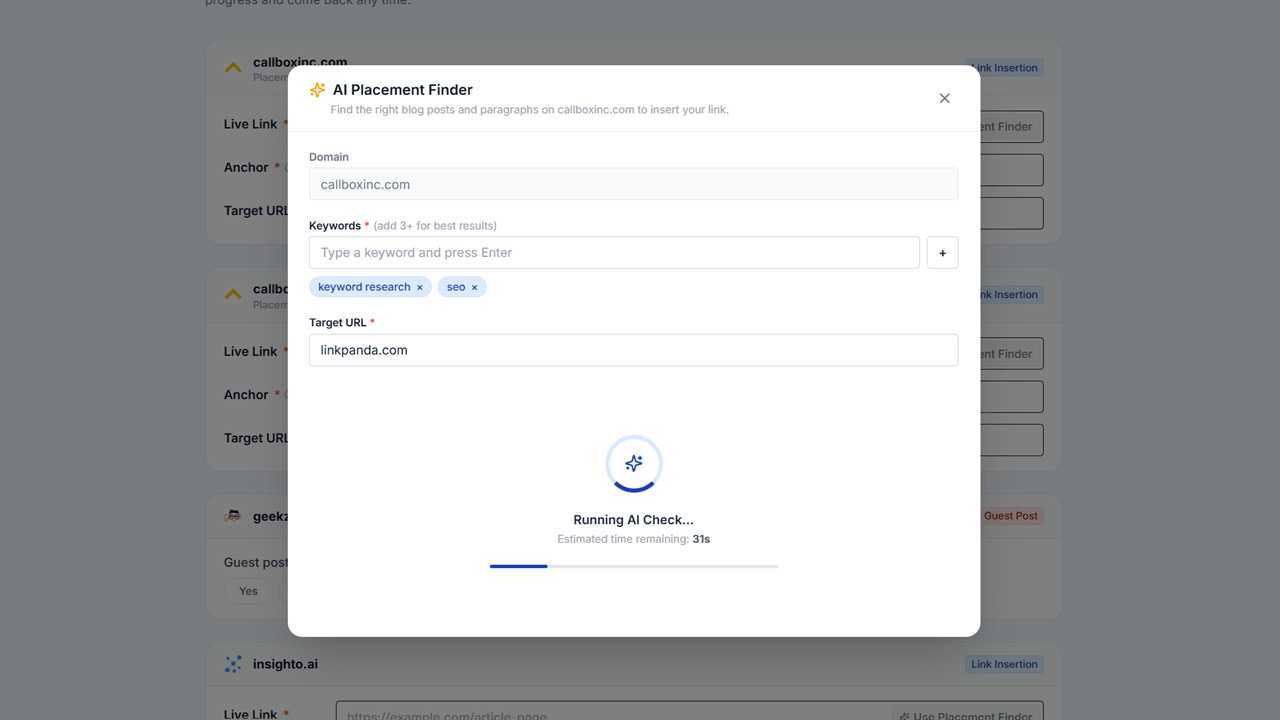
After placing an order, you are taken to the Order Confirmed page where you fill in your placement details. In the Live Link field for each placement, you will see a Use Placement Finder button. Click it to open the AI Placement Finder modal for that specific publisher.
How to Use It
1. The Domain field is automatically pre-filled with the publisher’s domain for the placement you are completing.
2. Enter at least 3 Keywords related to your target URL and press Enter after each one to add it as a tag. Use specific, topic-focused keywords rather than broad terms for the best results.
3. Enter your Target URL – the page on your website that the backlink should point to.
4. The tool runs an AI check (typically around 30 seconds) and returns a list of pages on the publisher’s site ranked by topical relevance to your keywords and target URL.
5. Select the most relevant result. The Live Link field is automatically filled with that URL.
When to use this version: After placing an order, when filling in the placement details form and you are unsure which specific article on the publisher’s site is the best fit for your link insertion.
Important: The Live Link must be a publicly accessible, live article page on the publisher’s site. Do not enter the publisher’s homepage or a category page unless the site’s link guidelines specifically permit it. Review the Link Guidelines in the site detail panel before selecting a page.
Key Differences at a Glance
SEO Tools – Backlink Placement Finder: Research stage. Use before ordering to evaluate whether a site has relevant content for your campaign. Access via SEO Tools in the sidebar.
Order Submission – AI Placement Finder: Fulfillment stage. Use after ordering to find the specific page on an already-chosen publisher’s site where your link will be inserted. Access via the Use Placement Finder button in the placement details form.
What If No Good Match Is Found?
If either tool does not return a suitable result, you can browse the publisher’s site manually. Look for articles that are topically relevant to your target URL and check that the content provides a natural context for your anchor text. If you are unsure, share the publisher domain and your target URL with your account manager via Inbox and they can advise on the best placement option.
Need Help?
If you have questions about using either version of the Placement Finder or need guidance on selecting the right anchor text and target URL, contact your account manager through Inbox in the left sidebar.