Overview
The Inbox is your central communication hub within the LinkPanda app. It keeps all messages, order updates, invoice notifications, and account manager correspondence in one place, organized across four tabs so you can find exactly what you need quickly.
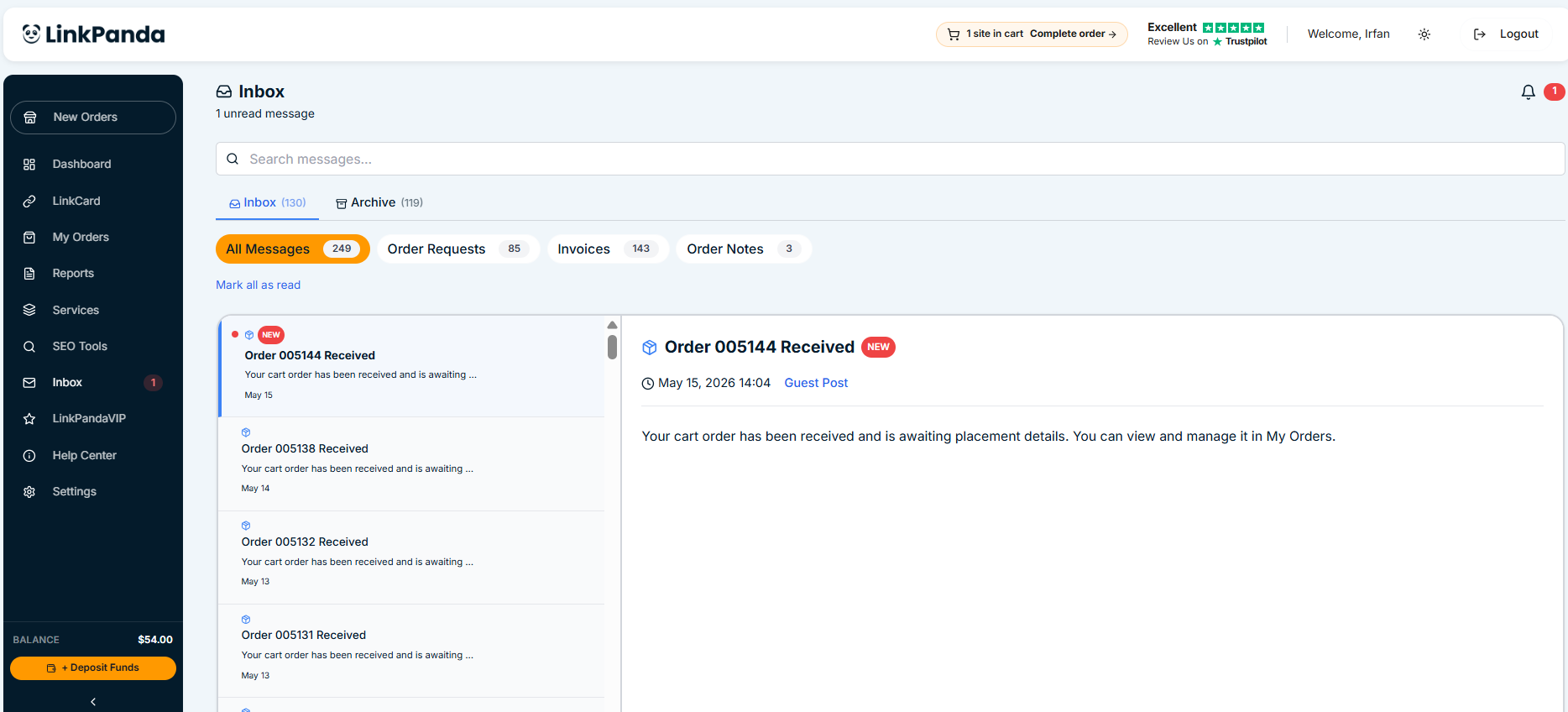
To open your Inbox, click Inbox in the left sidebar. A red number badge on the sidebar icon shows how many unread messages are waiting for you.
Inbox Tabs
Your Inbox is split into two main views: Inbox and Archive. Within the Inbox view, four sub-tabs organize your messages by type.
All Messages
Shows every message across all categories in one combined view, sorted by date with newest first. Use the search bar at the top to find a specific message by keyword or order number. This is your default view when you open Inbox.
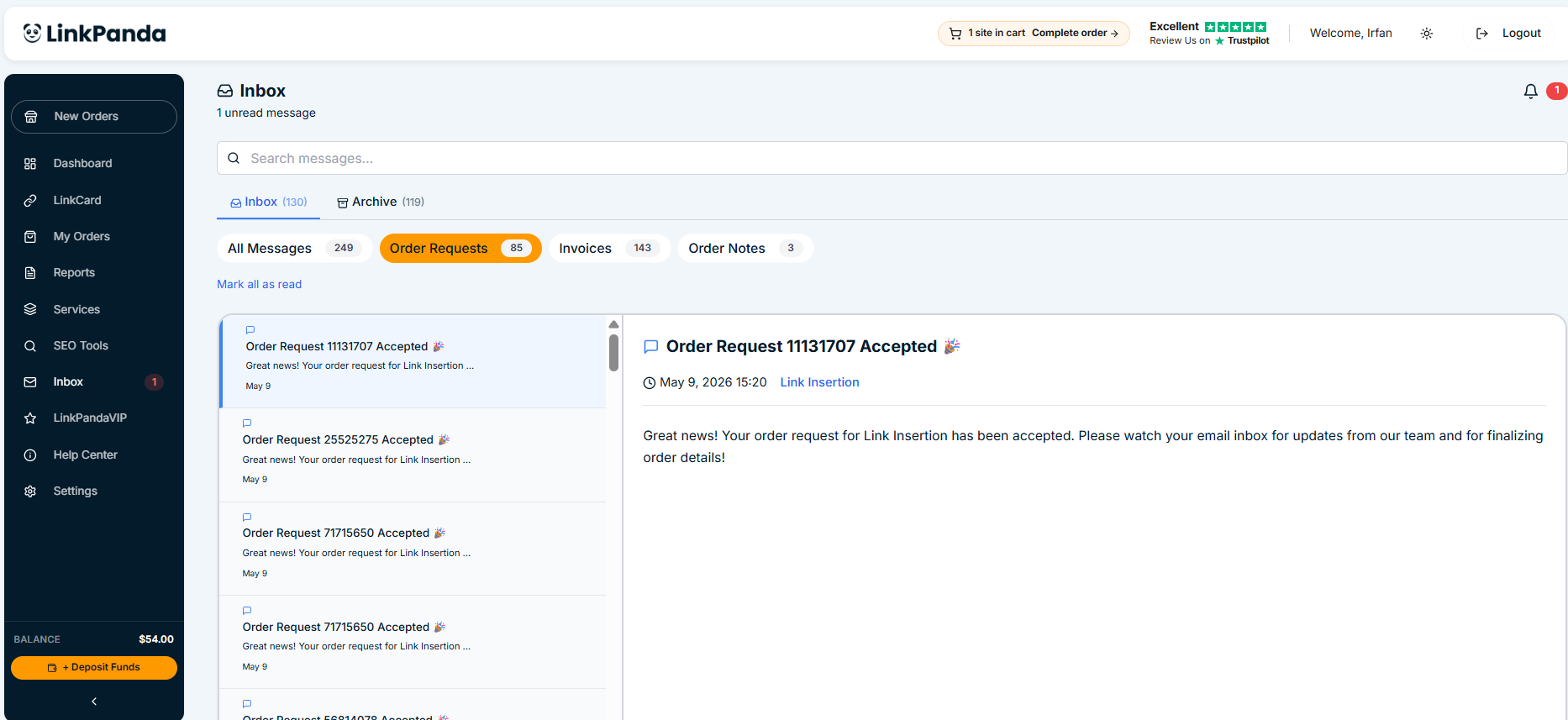
Order Requests
Contains status updates and confirmations specifically tied to your orders. When you place an order, a confirmation message appears here. If your account manager has a question about a placement or needs to flag something about an order, you will find it in this tab. Check here after placing any new order to confirm it has been received.
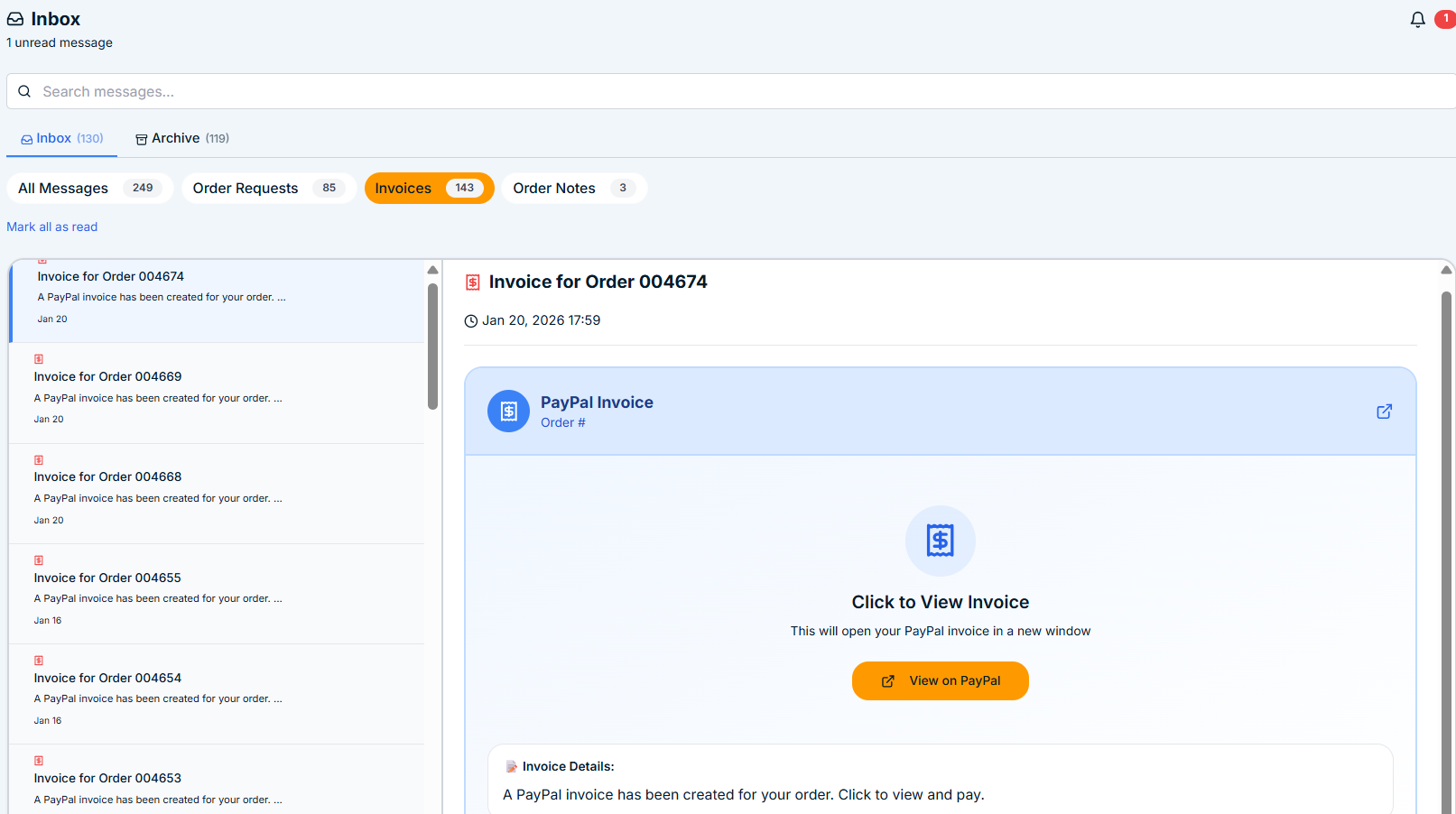
Invoices
Displays PayPal invoice notifications for each order you have placed. Each invoice message includes a link to view and pay the invoice directly. This lets you track outstanding and paid invoices without leaving the app or searching your email.
Order Notes
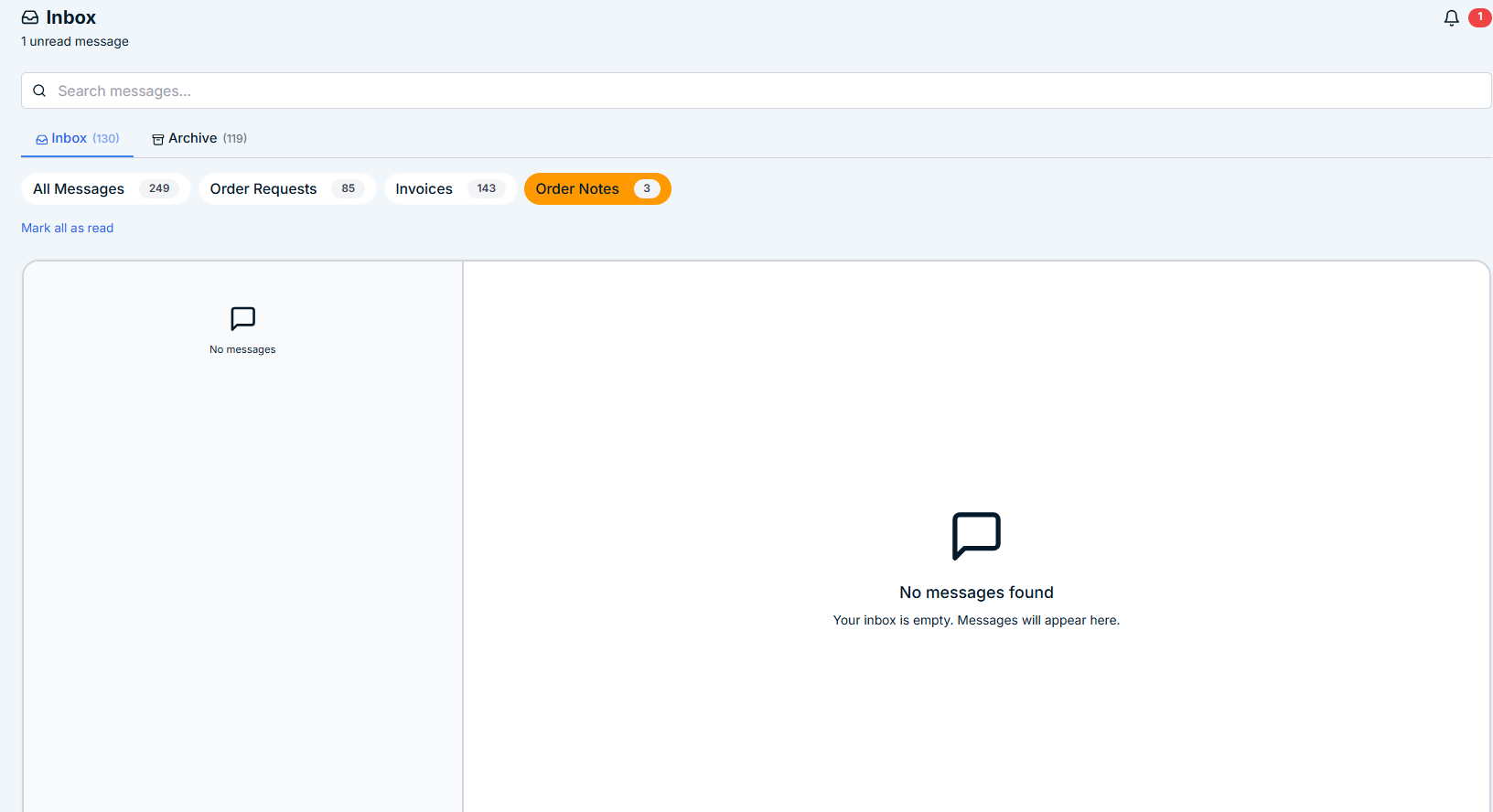
Contains notes added by your account manager or the LinkPanda team about specific orders. These may include delivery confirmations, clarifications about a placement, or actions required from you. The count next to the tab name shows how many notes are waiting.
Archive
The Archive tab holds older messages that have been marked as read and archived. If you are looking for a past communication that no longer appears in your main Inbox, check the Archive tab.
Sending a Message to Your Account Manager
To contact your account manager directly, open the Inbox and type your message in the conversation field. Press Enter or click the send button to submit. Your account manager typically responds within one business day. When asking about a specific order, always include the order number (for example: ORDER #004655) so they can look it up immediately.
Unread Badge
When new messages arrive, the red badge on the Inbox sidebar item updates automatically with the unread count. The badge clears once you open the relevant tab and view the messages. A bell icon in the top-right of the Inbox page also shows your total notification count.
Need Help?
If you are not receiving responses in your Inbox or are having difficulty reaching your account manager, contact LinkPanda support at the address provided in your welcome email. Your account manager’s email is also visible in your LinkCard page under the Account Manager field.