LinkCard Views
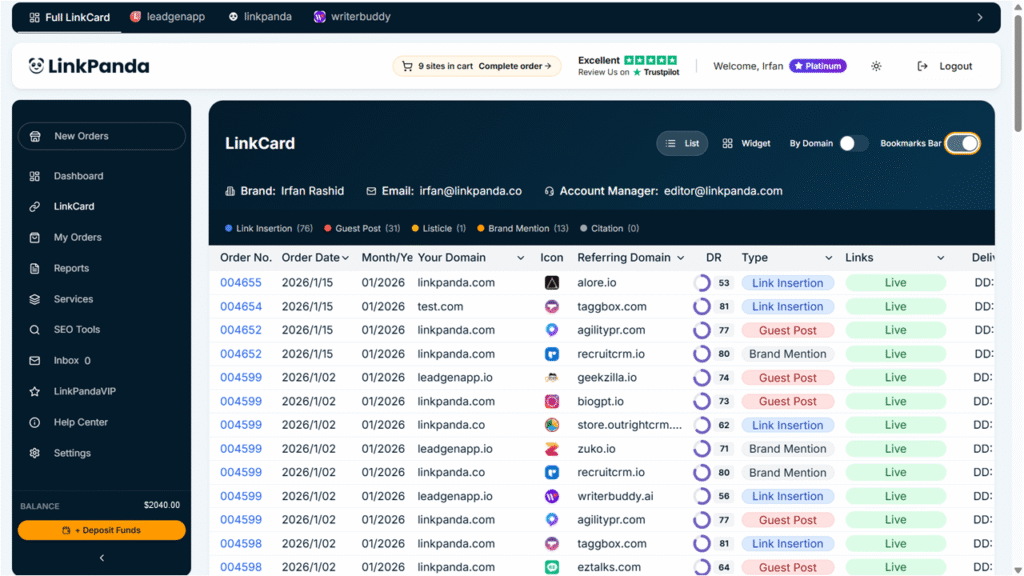
The LinkCard offers several view options, accessible via the toggle controls in the top right corner of the LinkCard header. Your selected view is saved to your account and will persist on your next login.

List View
List View is the default display mode. It presents your backlinks in a structured table, with each row representing a single backlink. This view is best for reviewing large volumes of links, sorting by column, and scanning delivery statuses across your portfolio at a glance.
Widget View
Widget View displays each backlink as an expanded card rather than a table row. Each widget shows the referring domain, link type badge, follow type badge, live link, anchor text, and target URL laid out more visually. This view is useful when you want to review individual links in more detail without opening the order side panel. You can expand any widget row by clicking the arrow on the left to reveal the full order date, month/year, and all link details in a structured card layout.
By Domain

Toggling By Domain switches the LinkCard from a flat list into a tabbed view organised by your target domains. When enabled, a row of domain tabs appears at the top of the LinkCard, showing each domain you are building links for, for example linkpanda.com, leadgenapp.io, linkpanda.co, and so on. We call these Sub LinkCards. There is also a Full LinkCard tab that returns you to the combined view of all domains.
Clicking any domain tab filters the table to show only the backlinks pointing to that specific domain. This makes it straightforward to review campaign performance for one website at a time, without needing to scroll through links for unrelated domains. A Select more domains dropdown allows you to access additional domains beyond those shown in the visible tab bar.

Understanding the LinkCard Columns
Each row in the LinkCard table represents a single backlink. Here is a full explanation of every column:
Order No.
The unique identifier for the order this backlink belongs to. Clicking the order number opens a side panel showing full order details, delivery progress, timestamps, and an invoice link. A single order can contain multiple link rows, as one order may cover several placements.
Order Date
The date the order was placed, displayed in YYYY/M/DD format.
Month / Year
The month and year in which the order was placed, shown as MM/YYYY. This makes it easy to group and review links from a specific campaign period.
Your Domain
The target domain you are building links for, for example linkpanda.com or leadgenapp.io. This reflects which of your websites the backlink is pointing to.
Icon
The favicon of the referring domain, displayed as a small icon to help you visually identify the website at a glance.
Referring Domain
The website where your backlink has been placed. This is the external site linking back to your domain.
DR
The Domain Rating of the referring domain, sourced from Ahrefs. DR is a score from 0 to 100 that reflects the overall strength of a website’s backlink profile. A higher DR generally indicates a more authoritative site. Use this column to quickly assess placement quality and compare the authority of your referring domains at a glance.
Type
The link building product used for this placement. Types include Link Insertion, Guest Post, Brand Mention, Listicle, and Citation.

Links (Link Status)
Shows the current status of the link. A green Live badge means the link is confirmed live on the referring domain. A Processing badge means the order is still being worked on and the link is not yet live. Please note link status is different from order status, as an order can included several links.
Delivery / ETA
For orders not yet delivered, this shows the estimated delivery date in the format ETA: YYYY/M/DD. For orders that have been delivered, it shows the actual delivery date in the format DD: YYYY/M/DD.
Live Link
The direct URL on the referring domain where your backlink is live. Clicking this takes you straight to the page containing your link so you can verify it in context.
Anchor
The anchor text used for the backlink on the referring domain. This is the clickable text that links back to your target URL.
Target URL
The specific page on your website that the backlink points to. This could be your homepage, a product page, a blog post, or any other URL you have specified for the campaign.
Opening Order Details
Clicking any Order No. in the table opens a side panel showing the full details of that order. A single order number can contain multiple backlink rows if the order covered several placements at once.

What the Order Details Panel Shows
The order details side panel is divided into several sections:
Product Summary shows the referring domain for this order and a Live or Processing status badge confirming whether the link is currently live.
Delivery Status shows a visual progress bar tracking the order through its three stages, with timestamps recorded in GMT for each stage:
- Order Placed (Blue dot): The order has been received and payment has been confirmed.
- In Progress / Processing (Amber dot): The order is being processed and the link is being arranged.
- Delivered (Green dot): The order has been completed and the link is live.
Order Information lists the full details of the individual link built within this order:
Order ID
The unique order reference number.
Order Date
The date the order was placed.
Link Type
The type of link built, for example Citation, Link Insertion, or Guest Post.
Follow Type
Whether the link is Follow (dofollow) or No-Follow, displayed as a colour-coded badge.
Your Domain
The target domain the link points to.
Referring Domain
The website where the link has been placed.
Anchor Text
The anchor text used for the link.
Live URL
A clickable link to the live placement page on the referring domain.
Target URL
A clickable link to the page on your website that the backlink points to.
Order History provides a timestamped event log for the order, showing exactly when each stage was reached. All times are shown in GMT.
Order Notes contains any additional notes added by your LinkPanda account manager relating to this specific order or placement.
Track Order
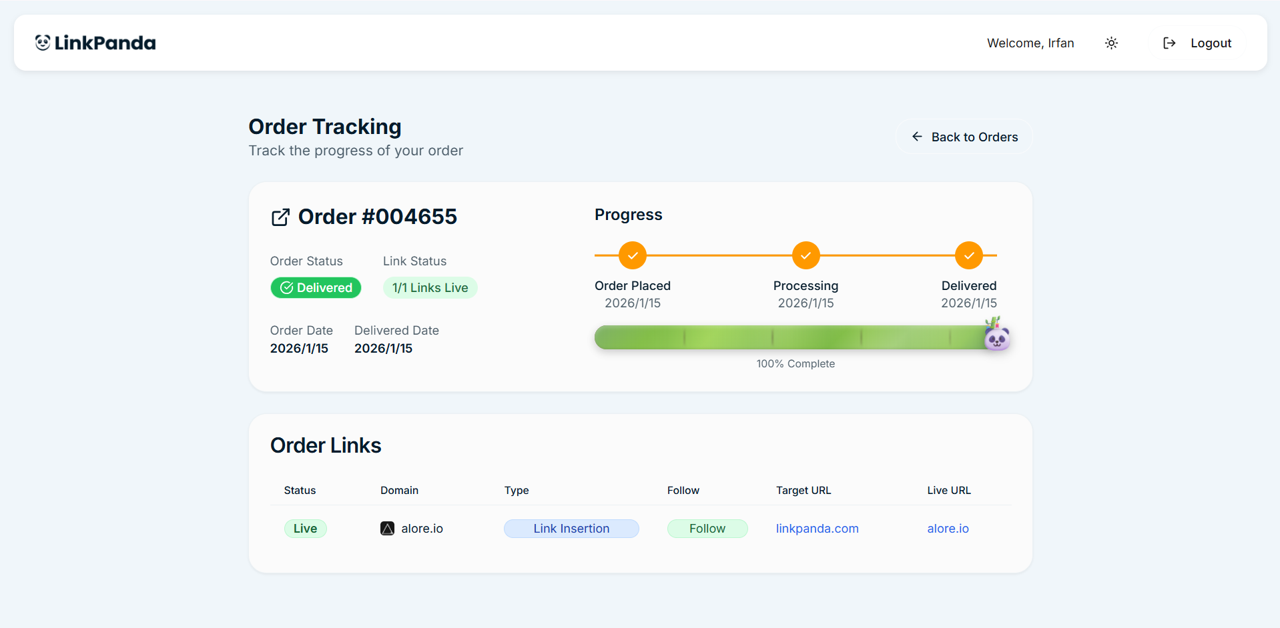
At the top of the order details panel there is an orange Track Order button. Clicking this opens a dedicated public order tracking page for that order, showing the progress bar, link status, and order links in a standalone view. This tracking page can also be shared with clients or colleagues who need visibility over a specific order without needing to log in to the app.
Invoice
The order details side panel also includes a link to the invoice for that order. Clicking it opens the invoice associated with the order, which you can save or download for your records.