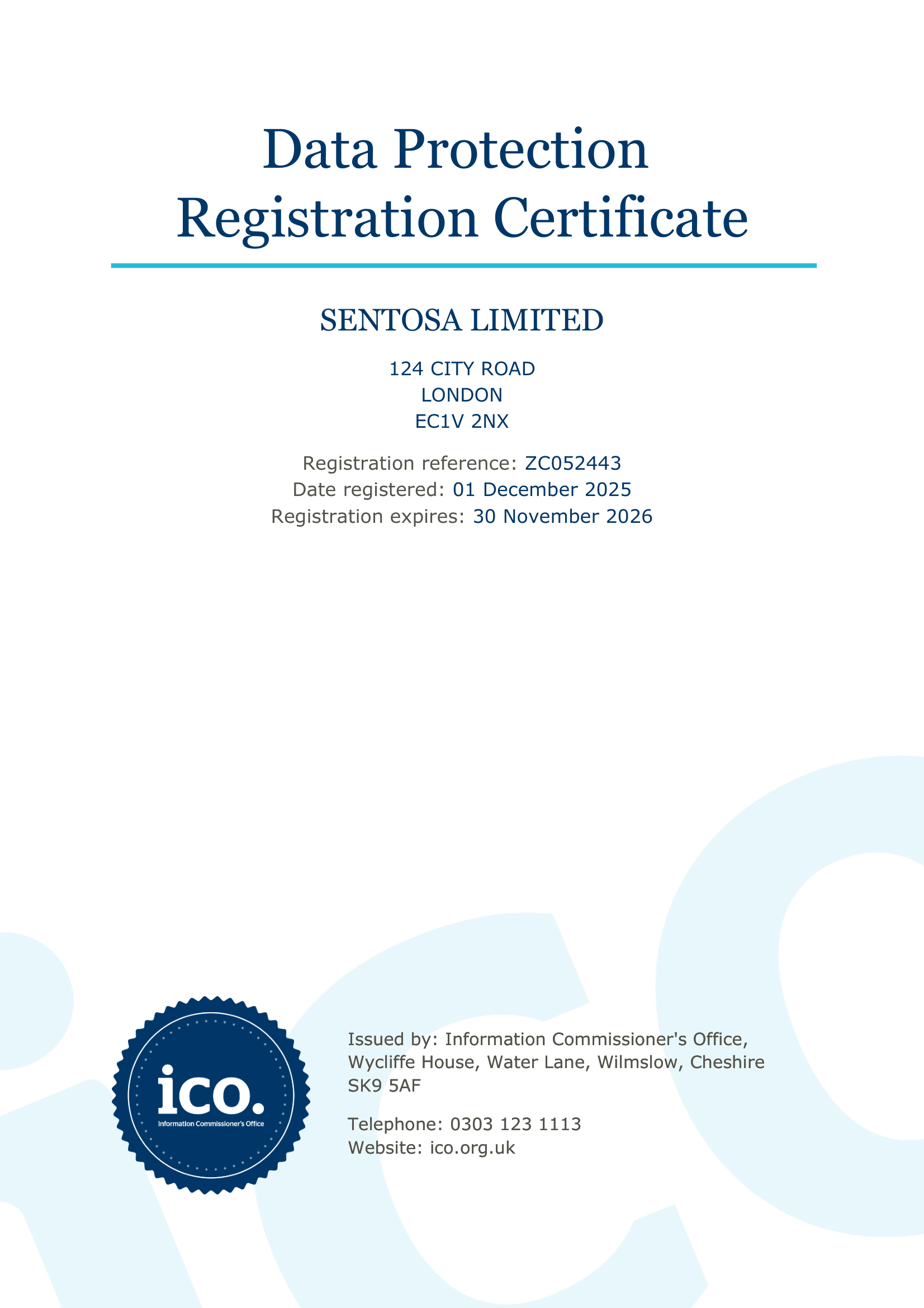
Dashboard Overview
The Dashboard is accessible from the left sidebar and gives you an at-a-glance summary of your account. It shows your Total Links count, which reflects all backlinks currently tracked across your campaigns, along with your LinkCards section, which displays each domain being managed on your behalf.
Every page in the app includes a title and a short description at the top so you always know where you are as you navigate between sections.
1. Left Sidebar
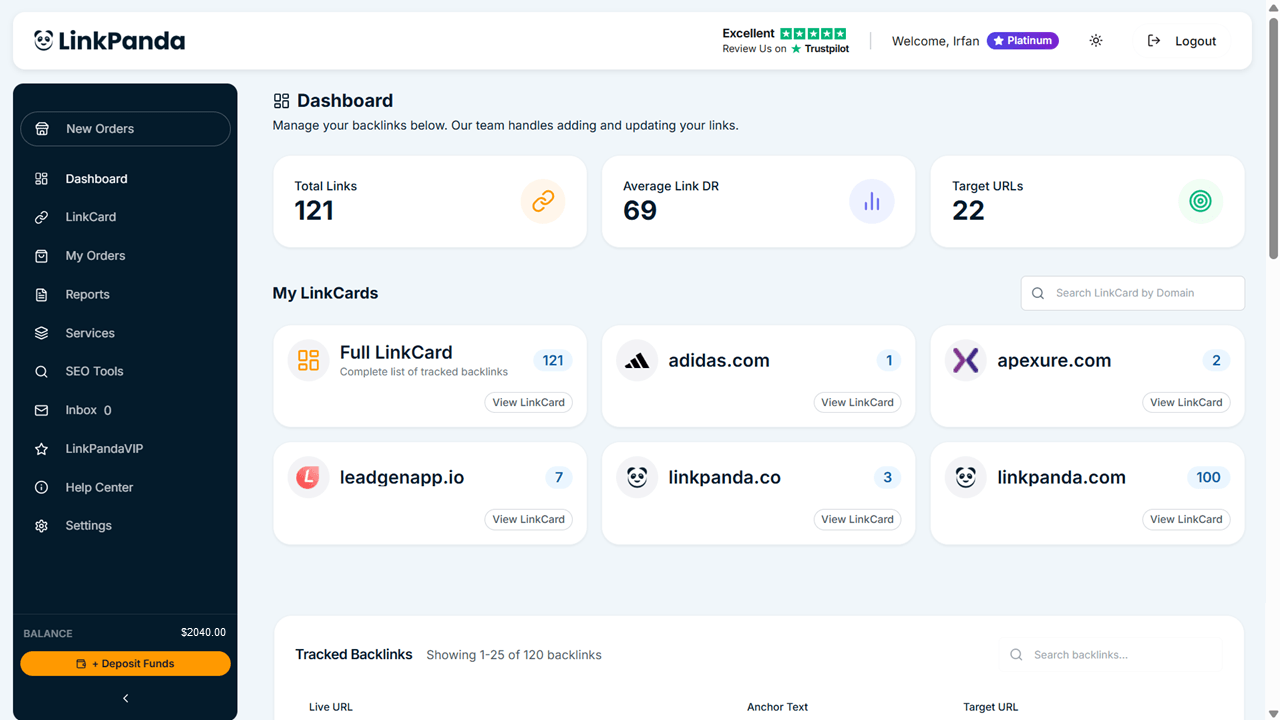
The sidebar runs down the left side of the screen and is your primary navigation. From here you can reach every section of your account:
- New Orders: The default page after login. Browse available placements and start new link building orders.
- Dashboard: Your account overview showing total tracked links and all your LinkCards.
- LinkCard: View and manage your full backlink tracker across all campaigns.
- My Orders: See all past and current orders with status and invoice history.
- Reports: Access detailed reporting on your link building performance over time.
- Services: Browse the full range of LinkPanda link building services.
- SEO Tools: Access built-in SEO tools to support your campaigns.
- Inbox: Receive updates, order notes, and messages from the LinkPanda team.
- LinkPanda VIP: Access VIP programme benefits and your current tier status.
- Help Center: Find guides, FAQs, and support articles for the app.
- Settings: Manage your account preferences, team access, and profile details.
At the bottom of the sidebar you will also see your Balance, which shows your current account credit. Clicking the Deposit Funds button opens a panel where you can top up your balance to use towards future orders.
2. Header
The header runs across the top of every page. It displays your account name so you always know which account you are logged into. It also includes a light and dark mode toggle and a logout button to securely exit your session. Further, you can easily access available LinkPanda Services via the Services button.

3. Main Content Area
The large central area of the screen is where all page content is displayed. It updates as you navigate between sections. Every page includes a title and a short description at the top. This is where you will view your LinkCards, manage orders, and interact with all platform features.

Understanding LinkCards
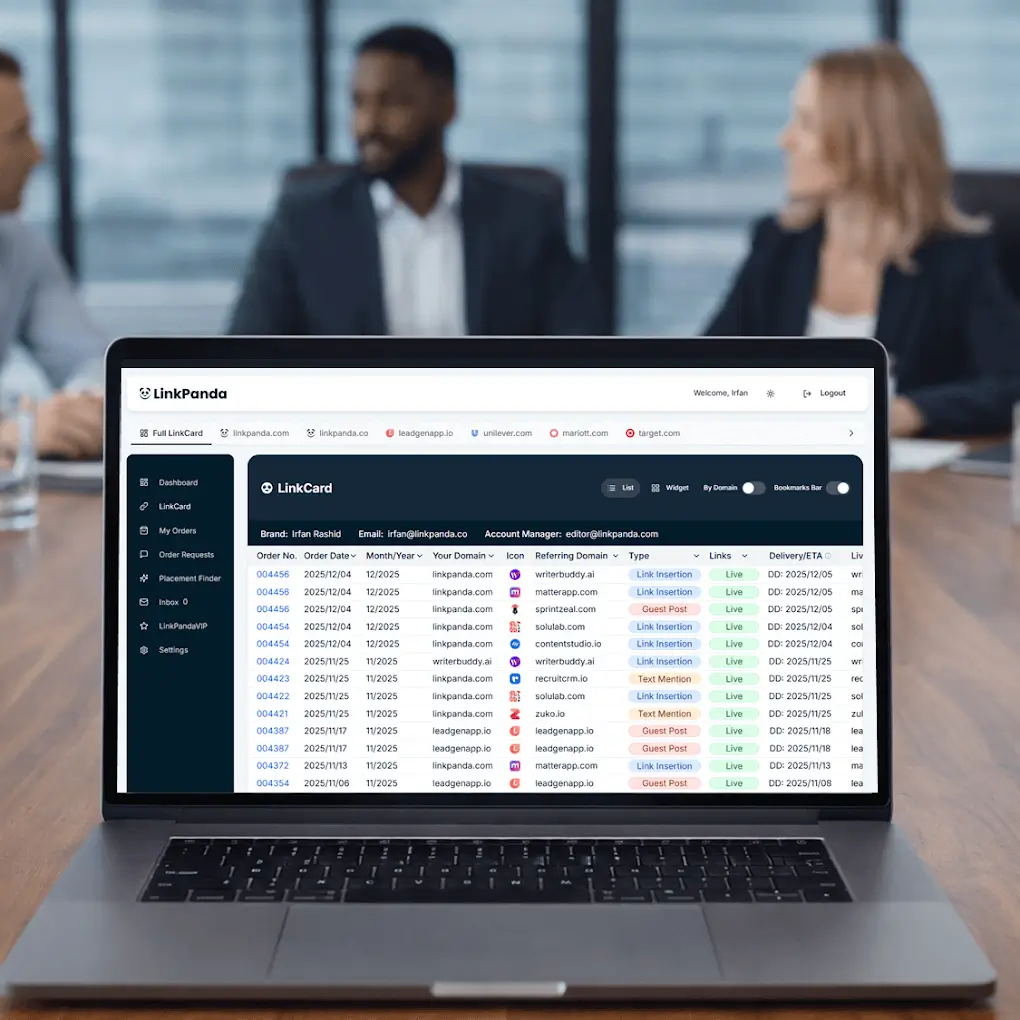
LinkCards are one of the core features of the LinkPanda App. Each LinkCard represents a target domain and displays all the backlinks being tracked for that domain in one place. They make it easy to monitor the status of your link building activity without having to search through individual orders.
Full LinkCard
The Full LinkCard is a consolidated view of every tracked backlink across all your domains. It sits at the top of your My LinkCards section and shows your entire link portfolio in one list. If you have 121 total links across all your campaigns, the Full LinkCard displays all 121 together.
Sub LinkCards
Below the Full LinkCard you will see individual Sub LinkCards for each target domain. Each Sub LinkCard is labelled with the domain name and shows the number of backlinks tracked for that specific domain. For example, you may have a Sub LinkCard for linkpanda.com showing 100 links, and a separate one for leadgenapp.io showing 7 links.

Clicking View LinkCard on any card opens the full tracked backlinks list for that domain. Sub LinkCards are particularly useful if you are managing SEO campaigns for multiple websites or clients from a single account, as they keep each domain clearly separated.
Tracked Backlinks
Inside each LinkCard you will find the Tracked Backlinks table. This is a detailed, real-time list of every backlink associated with that LinkCard. The table displays the following columns for each link:
- Live URL: The website where your backlink has been placed.
- Anchor Text: The clickable text used for the link on the referring page.
- Target URL: The page on your website that the link points to.

The table supports search functionality so you can quickly find a specific backlink by domain or URL. It also paginates results, for example showing 1 to 25 of 121 backlinks, so you can browse through large link portfolios without losing track.
The Tracked Backlinks section gives you a transparent, real-time record of every link that has been built and is being monitored on your behalf by the LinkPanda team. You do not need to do anything to update this list as the team handles all additions and status updates for you.
 Email: info@linkpanda.com
 Contact: