How to Access the AI Placement Finder
The AI Placement Finder can be accessed in two ways:
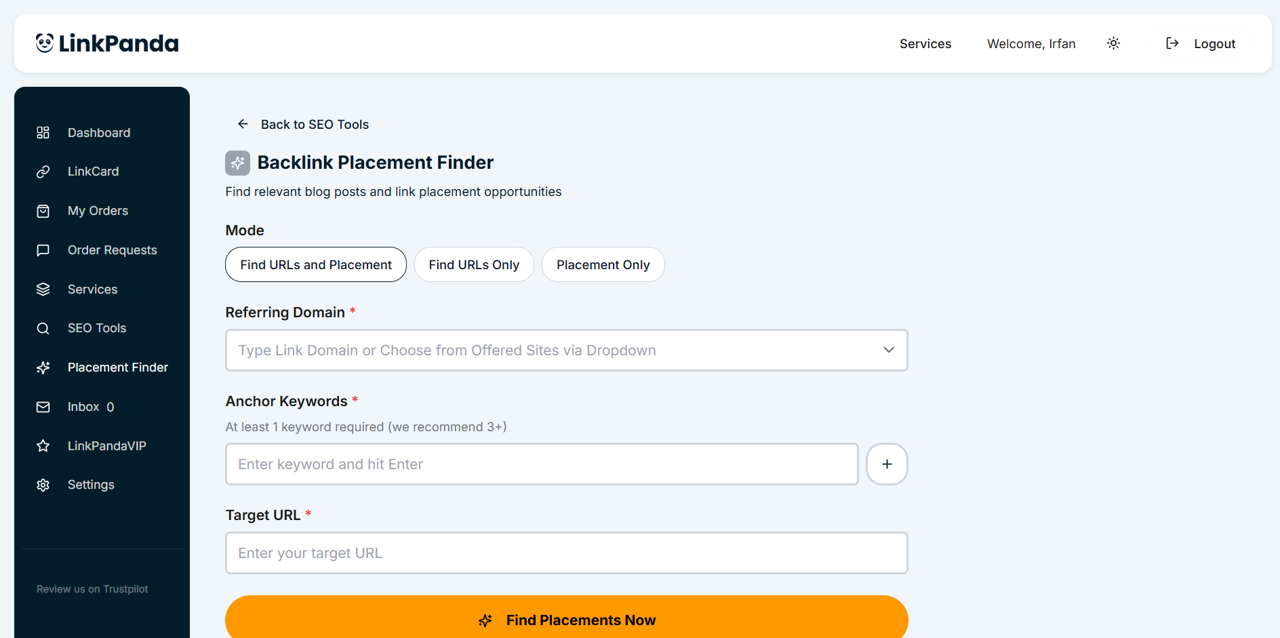
- From the Placement Finder item in the left sidebar, which opens it as a standalone tool.
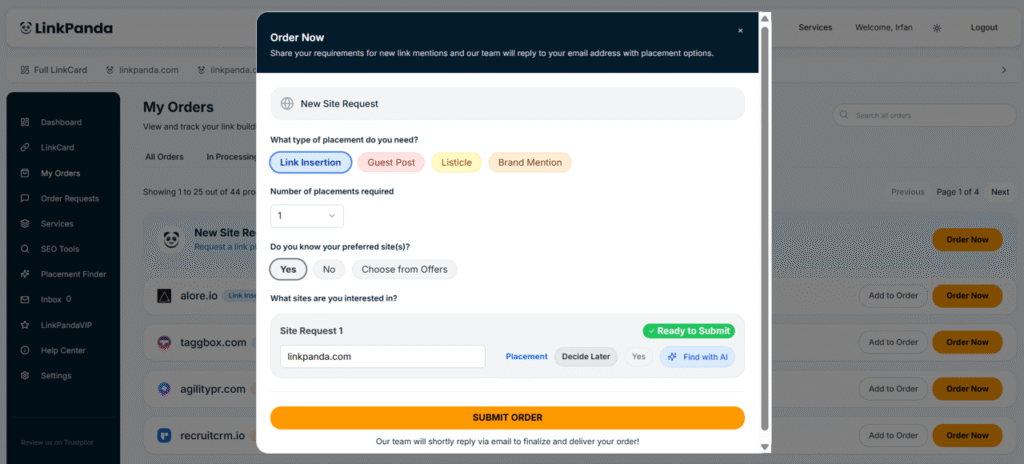
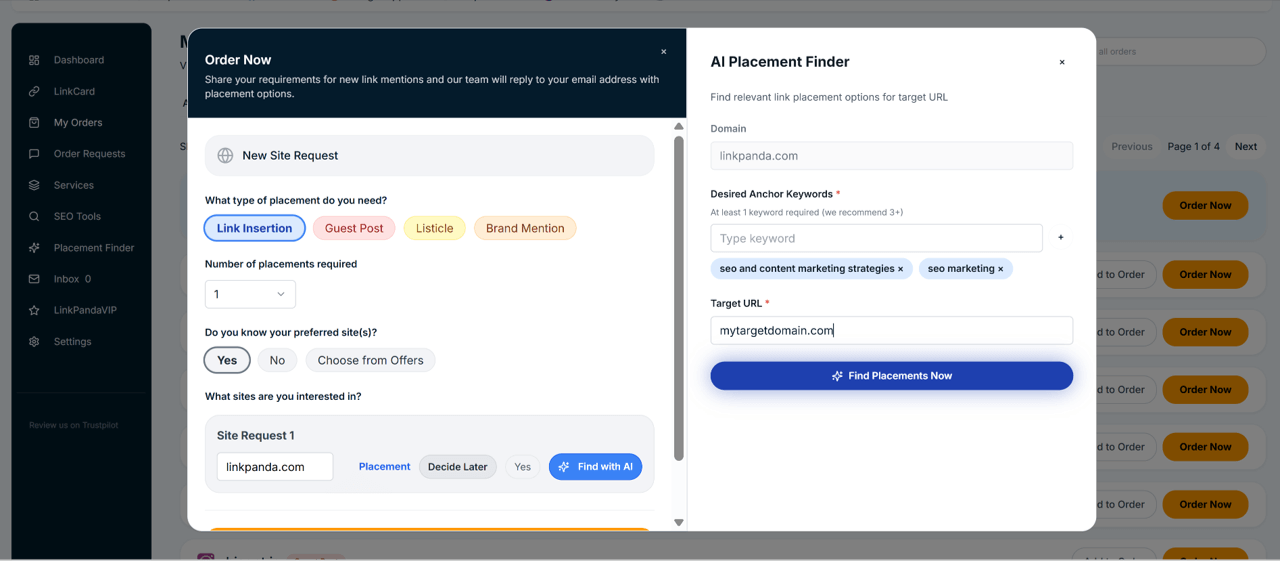
- From within the Order Now form by clicking Find with AI on any Site Request card. This opens the AI Placement Finder in a panel alongside the order form so you can find and add placements without leaving the order flow.
Step 1: Enter Your Requirements
The AI Placement Finder requires three inputs before it can run a search:
Domain
Enter the referring domain you want the AI to analyse for placement opportunities, for example linkpanda.com. This tells the tool which site to scan for pages where your link could be naturally inserted.
Desired Anchor Keywords
Enter one or more keywords that should match or relate to the anchor text of your backlink. At least one keyword is required, and three or more are recommended for more relevant results. You can add multiple keywords by typing each one and pressing the add button. The AI uses these keywords to find pages on the referring domain where your anchor would fit contextually.
Target URL
Enter the specific page on your website that the backlink should point to. The AI uses this URL to understand the topic of your target page and match it against relevant content on the referring domain.
Once all three fields are filled in, click Find Placements Now to start the search.
Step 2: The AI Check Runs
After clicking Find Placements Now, the AI Placement Finder begins its analysis. A progress indicator is shown with a real-time status message and an estimated time remaining, typically around 60 seconds. During this time the tool is scanning the referring domain for suitable URLs and checking each one for contextual relevance against your anchor keywords and target URL.
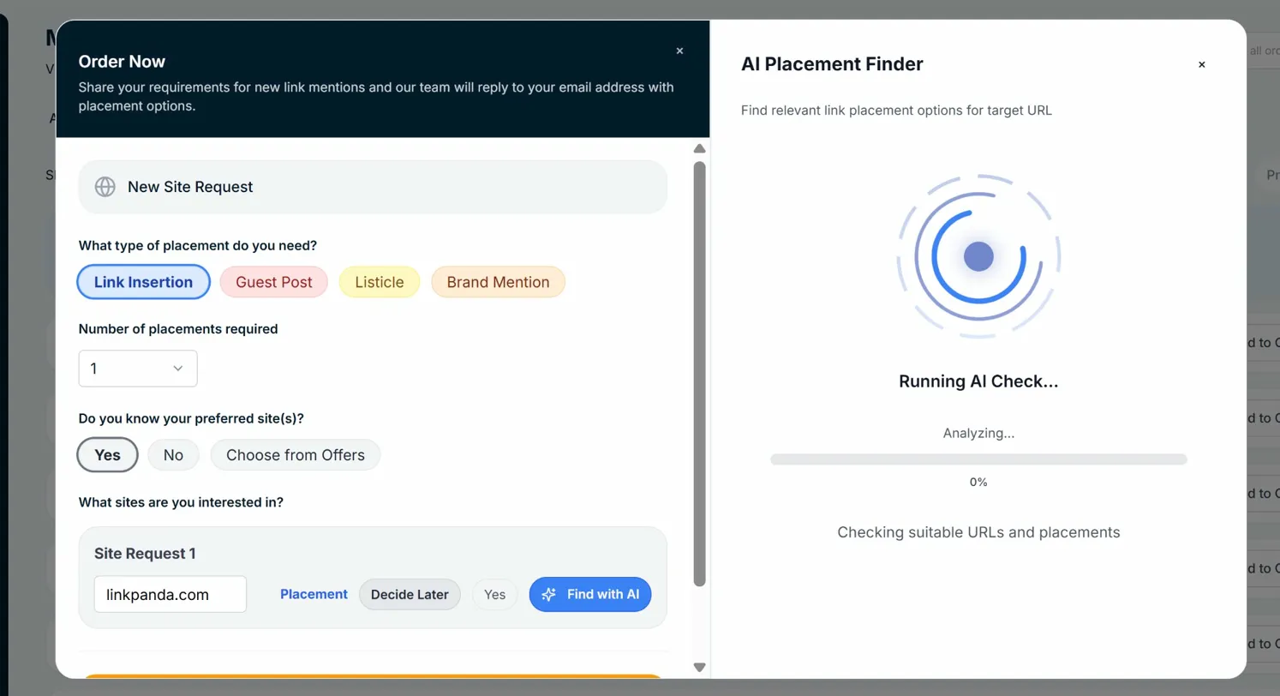
The status message confirms the tool is Checking suitable URLs and placements while the progress bar advances to completion.
Step 3: Review the Placement Options
When the analysis is complete, the tool displays a Placement Options Found screen showing up to 10 candidate URLs from the referring domain. These are numbered and displayed as clickable cards. Each option represents a specific page on the referring domain where the AI has identified a suitable location for your backlink.
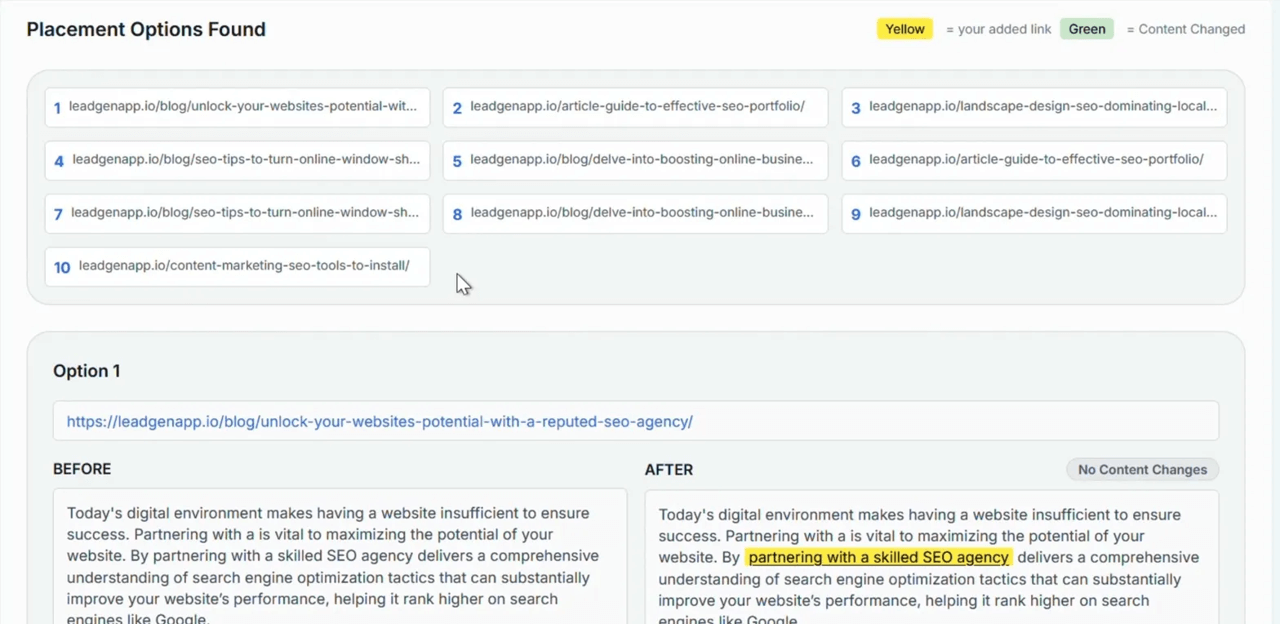
A colour key at the top of the results explains two indicators used across the options:
- Yellow highlight indicates text that represents your added link or anchor within the content.
- Green indicates that the content on that page has been changed as part of the placement suggestion.
Clicking any numbered option from the list opens the full detail view for that placement, showing:
- The full URL of the page on the referring domain where the link would be placed.
- Before panel: The original paragraph of existing content on that page, exactly as it currently appears.
- After panel: The same paragraph with your anchor link highlighted in yellow, showing how the content would read with your link inserted. If no content changes are required, the After panel will display a No Content Changes badge.
Step 4: Edit the Placement (Optional)
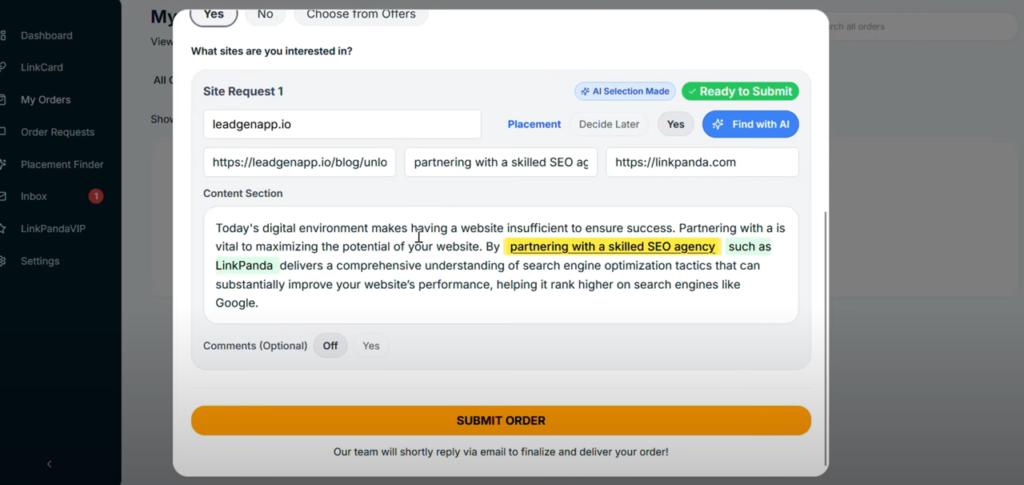
If you want to adjust how the link is inserted into the content, click the edit icon on the placement option to open the Content Changes Preview and Edit panel. This full-screen editor shows:
- The live URL of the placement page at the top, with a Link Added confirmation badge once your link has been placed in the editor.
- Before panel: The original content of the paragraph, unchanged.
- After panel: A live preview of the content with your anchor highlighted in yellow, reflecting any edits made.
- Edit Content panel: A rich text editor on the right-hand side where you can make changes to the content surrounding or including your anchor text. The editor supports bold, italic, underline, strikethrough, ordered and unordered lists, hyperlinks, and text formatting. Changes made here update the After preview in real time.
- Comments / Notes field: An optional free-text area at the bottom of the edit panel where you can add any specific instructions or notes about this placement for the LinkPanda team.
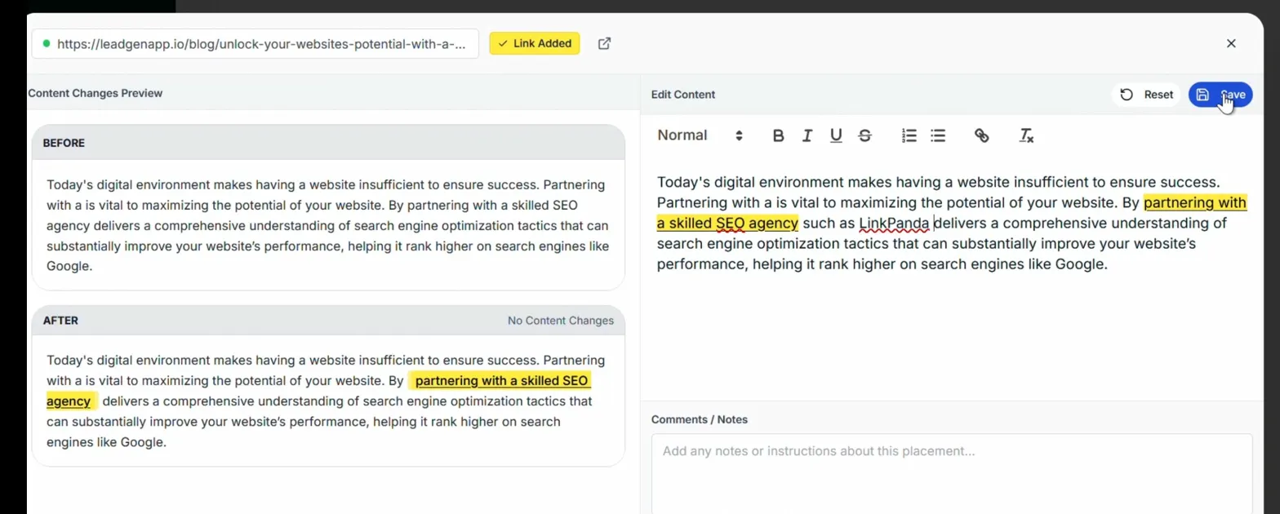
Click Reset at any time to revert the content back to the original AI suggestion. Click Save to confirm your edits and return to the placement options list.