
Where to Access Order Tracking
The Track Order button is available in two places within the app:
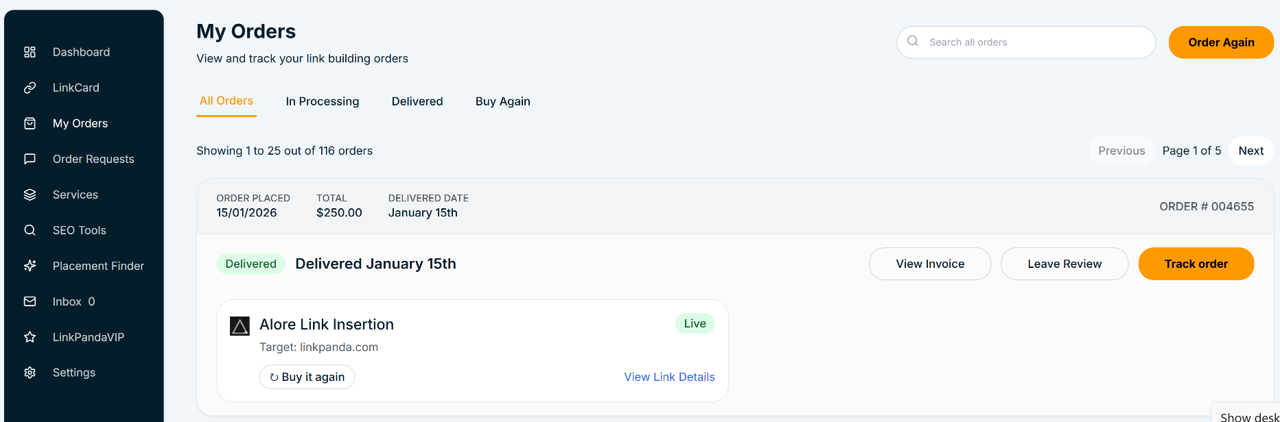
From My Orders
Open My Orders from the left sidebar. Each delivered order card has a Track Order button on the right side of the card. Clicking it opens the full Order Tracking page for that order in the app.
From the LinkCard
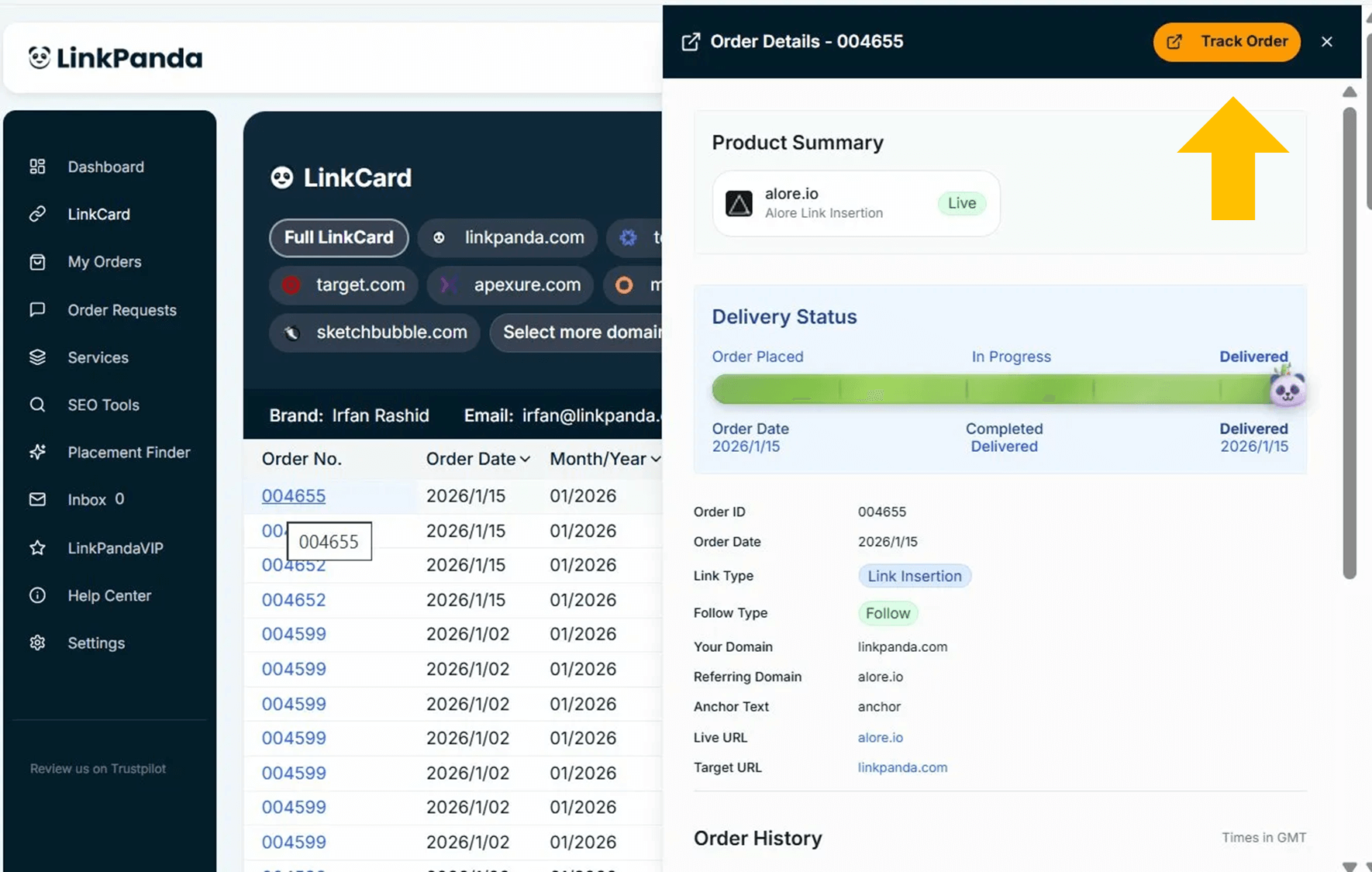
Open your LinkCard and click any Order No. in the table. This opens the Order Details side panel. At the top of the side panel there is an orange Track Order button. Clicking it opens the Order Tracking page for that specific order, showing the same full progress and link details view.
What the Order Tracking Page Shows
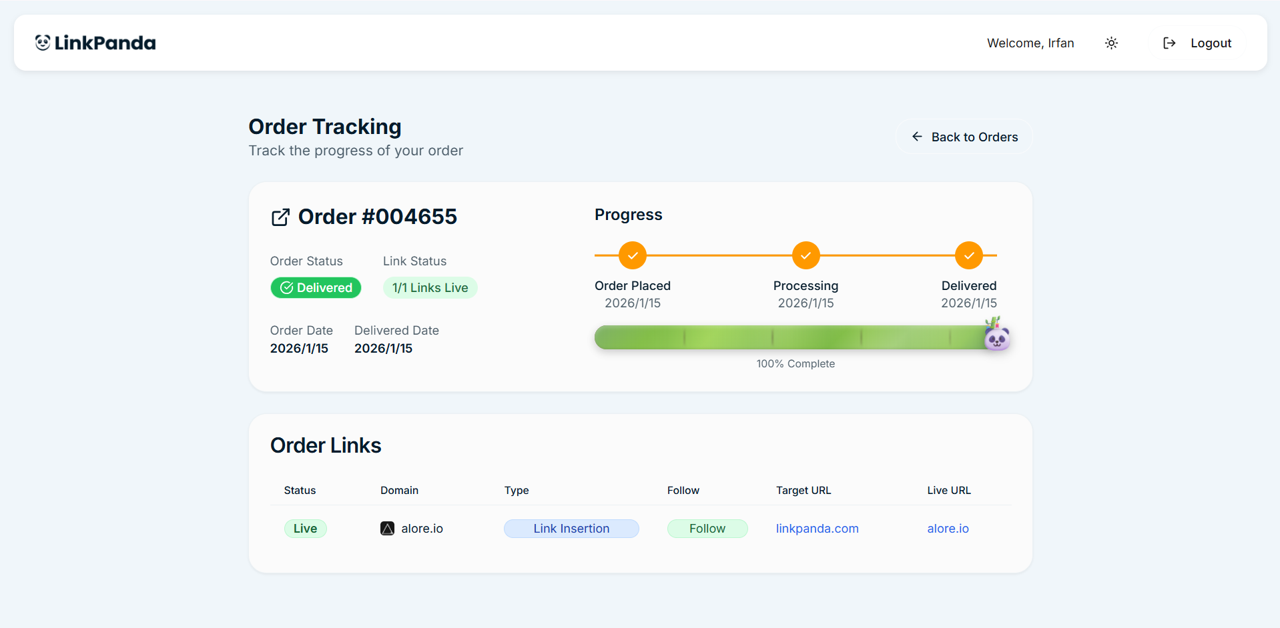
The Order Tracking page is divided into two sections: the order progress summary at the top, and the Order Links table below.
Order Progress Summary
The top section shows the key details for the order at a glance:
- Order Number: The unique reference for the order, for example Order #004655.
- Order Status: The overall status of the order, shown as a colour-coded badge. A green Delivered badge confirms the order is complete.
- Link Status: A summary of how many links within the order are live, for example 1/1 Links Live.
- Order Date: The date the order was placed.
- Delivered Date: The date the order was completed and the link confirmed live.
To the right of these details, a Progress indicator shows the three delivery stages with timestamps:
- Order Placed — confirmed with date
- Processing — confirmed with date once work has started
- Delivered — confirmed with date once the link is live
A green progress bar beneath the stage indicators fills to show overall completion. When all stages are complete the bar reaches 100% and the LinkPanda panda mascot appears at the right end of the bar.
Order Links Table
Below the progress summary, the Order Links table lists every individual link within the order. Each row shows:
- Status: Whether the individual link is Live or Processing.
- Domain: The referring domain where the link has been placed, shown with its favicon.
- Type: The placement type, for example Link Insertion, Guest Post, or Brand Mention.
- Follow: Whether the link is Follow (dofollow) or No-Follow.
- Target URL: The page on your website the link points to.
- Live URL: The direct URL on the referring domain where the link is live. Clicking this opens the live placement page.
The Order Details Side Panel
In addition to the Order Tracking page, clicking any Order No. in the LinkCard opens an Order Details side panel. This panel provides a more detailed view of the individual link within that order row, including:
- Product Summary: The referring domain, product name, and Live or Processing status.
- Delivery Status: A visual progress bar showing Order Placed, In Progress, and Delivered stages with dates. The Delivered stage is highlighted in blue text when complete.
- Order Information: Full placement details including Order ID, Order Date, Link Type, Follow Type, Your Domain, Referring Domain, Anchor Text, Live URL, and Target URL.
- Order History: A timestamped event log for the order, with all times shown in GMT.
The orange Track Order button at the top of the side panel opens the full public Order Tracking page for that order.