
A step-by-step guide to submitting a new link building order through the LinkPanda App, including all placement types and site selection options.
How to Start an Order
There are two ways to open the order form:
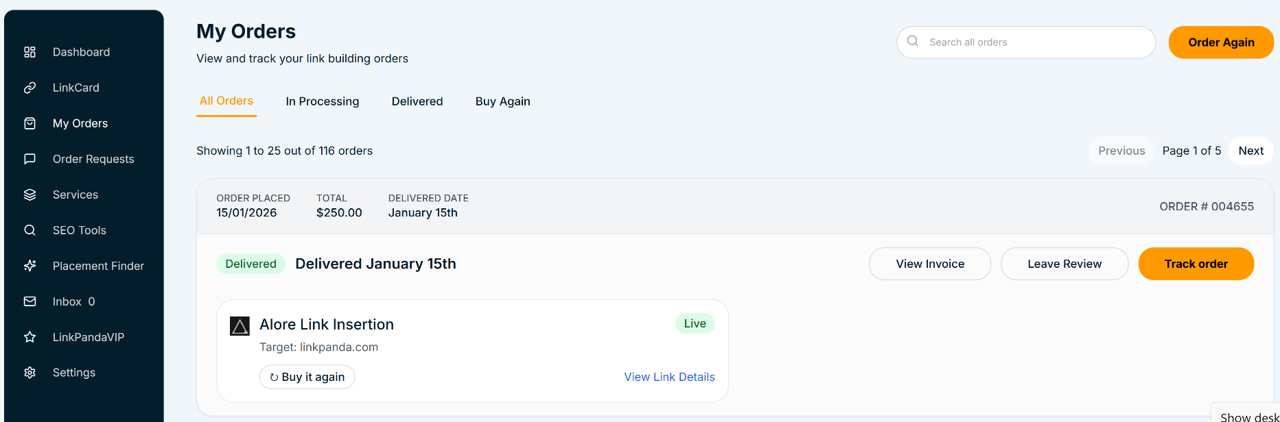
- Click the Order Again button at the top right of the My Orders page to open a blank New Site Request form.
- Click Order Now next to any existing placement in the Buy Again tab to open the form pre-filled with that site and placement type.
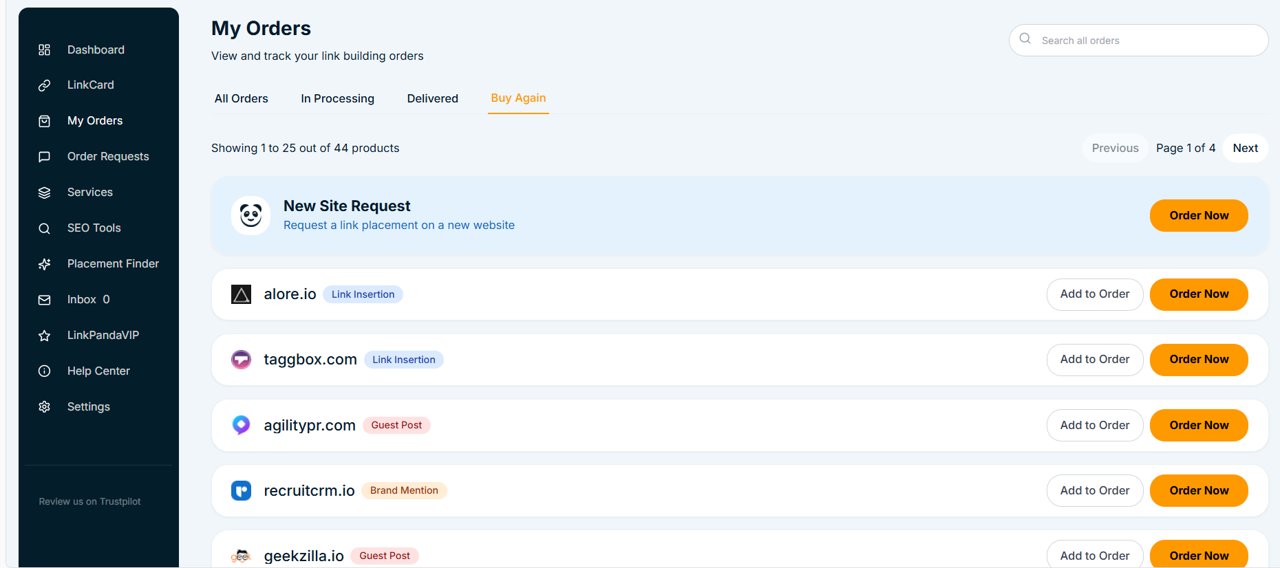
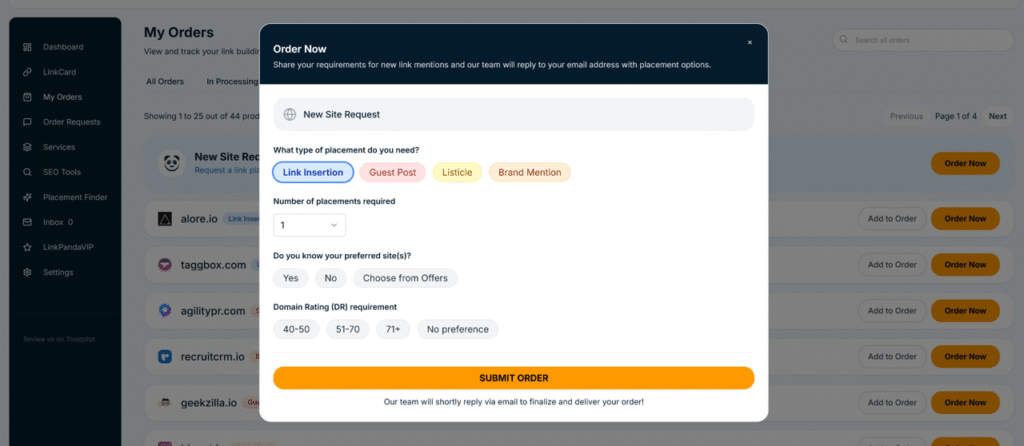
Both options open the Order Now modal. After submission, the LinkPanda team will reply to your account email with placement options or confirmation to finalise and deliver your order.
Step 1: Choose Your Placement Type
At the top of the order form, select the type of placement you need. There are four options:
- Link Insertion: A backlink inserted into existing content on a relevant referring domain.
- Guest Post: A newly written article published on a referring domain with a backlink included.
- Listicle: A placement within a list-style article on a referring domain.
- Brand Mention: A branded text mention of your company on a referring domain, with or without a hyperlink.
The fields shown in the Site Request section below will change depending on which placement type you select.
Step 2: Set the Number of Placements
Use the Number of placements required dropdown to select how many links you want from this order. This is useful when you want to request multiple placements of the same type in a single order submission.
Step 3: Choose Your Preferred Site(s)
The form asks whether you know which site(s) you want the link placed on. There are three options:
Yes — I know my preferred site
Select Yes to enter a specific referring domain you want your link placed on. A Site Request card will appear where you enter the site URL. Depending on the placement type, additional fields will appear:
- Link Insertion and Listicle: Live Link, Anchor, Target URL, and an optional Comments field.
- Guest Post: Guest post topic, a Post Ready toggle (Yes or No), a Content Ready toggle with options to Upload file or Provide link, and an optional Comments field.
- Brand Mention: Live Link, Brand Name, Your Domain, and an optional Comments field.
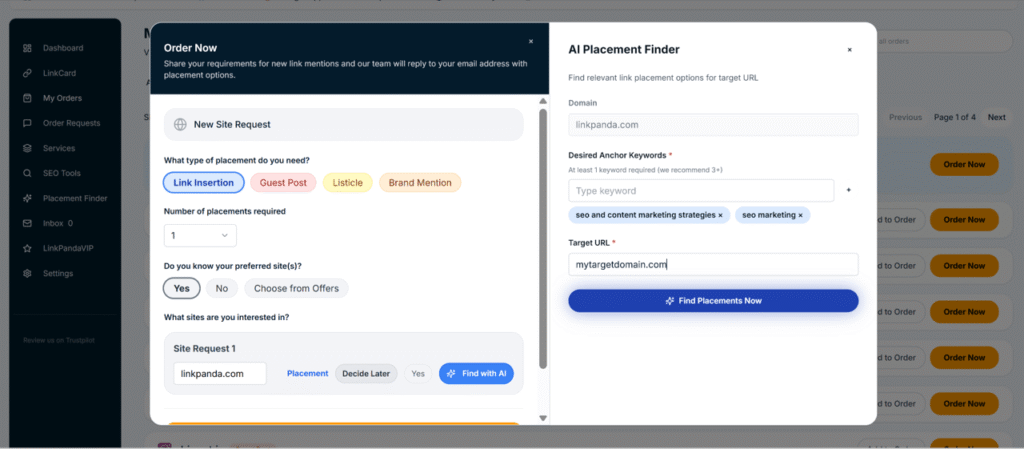
Each Site Request card also has a Placement toggle with two states: Decide Later (if you are not yet sure of the exact placement details) or Yes / Ready (if you have the full placement details ready to submit now). You can also click Find with AI to open the AI Placement Finder and discover suitable referring domains automatically.
No — I do not have a preferred site
Select No if you would like the LinkPanda team to source a suitable referring domain on your behalf. The team will reply to your account email with placement options based on your requirements, including your selected placement type, DR preference, and number of placements.
Choose from Offers
Select Choose from Offers to browse a curated list of available referring domains that LinkPanda has ready for placement. These are pre-approved sites you can select directly from the list. This is the fastest route to placing an order as the sites are already vetted and available.
Step 4: Set Your Domain Rating Preference
When placing a New Site Request (where no specific site has been chosen), you can specify a Domain Rating (DR) requirement for the referring domain. The available ranges are:
- 40 to 50
- 51 to 70
- 71+
- No preference
This helps the LinkPanda team source a referring domain that matches your campaign requirements.
Using the AI Placement Finder
When filling in a Site Request, you can click Find with AI to open the AI Placement Finder panel alongside the order form. This tool helps you discover relevant referring domains for your link placement by entering:
- Domain: The domain you are building links for (for example linkpanda.com).
- Desired Anchor Keywords: One or more keywords you want the anchor text to reflect. At least one keyword is required, and three or more are recommended for better results.
- Target URL: The specific page on your website that the link should point to.
Click Find Placements Now to run the search. The AI Placement Finder will return a list of relevant websites that are suitable for your placement. You can also access the AI Placement Finder directly from the Placement Finder item in the left sidebar.
Step 5: Submit Your Order
Once you have filled in all the required fields, click the Submit Order button at the bottom of the form. After submission, the LinkPanda team will review your request and reply to your account email to finalise and deliver your order.
Tracking Your Order Request
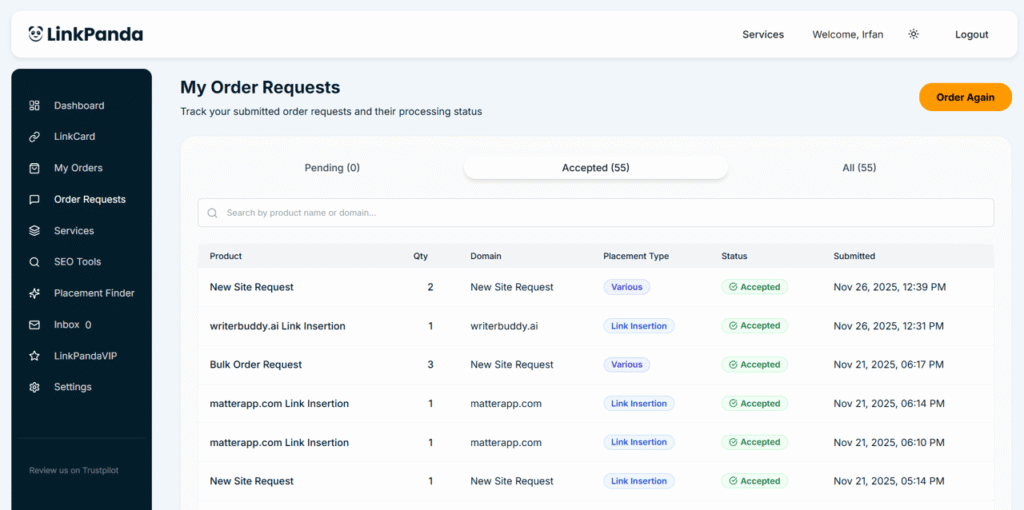
After submitting, your order request appears on the My Order Requests page, accessible from Order Requests in the left sidebar. The page is organised into three tabs:
Pending
Requests that have been submitted but not yet reviewed or accepted by the LinkPanda team. Once the team has confirmed the order, it moves out of Pending.
Accepted
Requests that have been reviewed and accepted by the team. Each accepted request shows the product name, quantity, domain, placement type badge, status, and the date and time it was submitted. Accepted orders are then processed and will appear in your My Orders page as the work progresses.
All
A combined view of all order requests regardless of status, showing both Pending and Accepted requests together.
You can search across your order requests by product name or domain using the search bar at the top of the Order Requests page. Click Order Again at any time to submit a new order request.
Need Help?
If you have questions about placing an order or need guidance on which placement type suits your campaign, your account manager is your first point of contact. Their email is shown at the top of your LinkCard.
General support: info@linkpanda.com
Contact: linkpanda.com/contact