
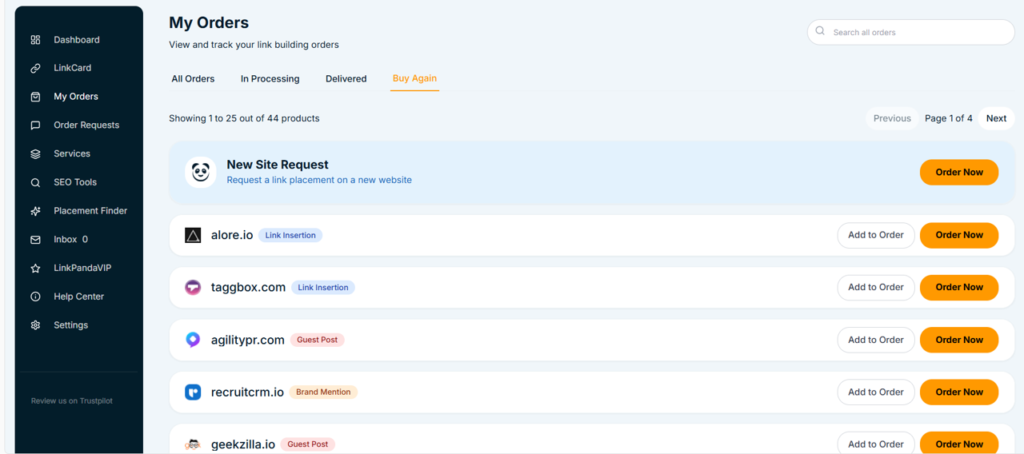
Reading an Order Card
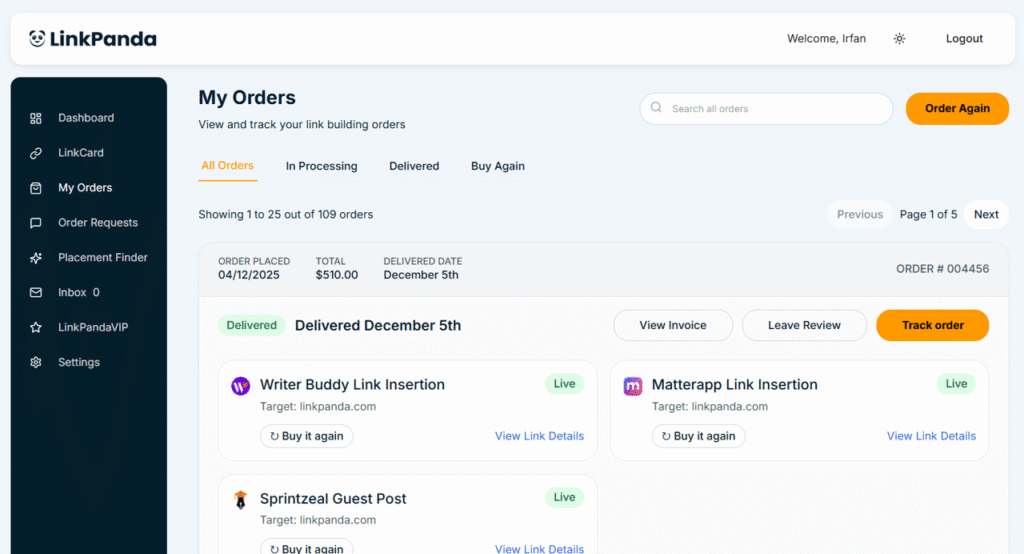
Each order in the list is displayed as a card. The card header shows four key pieces of information at a glance:
- Order Placed: The date the order was submitted, shown in DD/MM/YYYY format.
- Total: The total amount paid for the order.
- Delivered Date: The date the order was delivered, once completed.
- Order Number: The unique order reference, shown in the top right of the card header (for example Order # 004655)
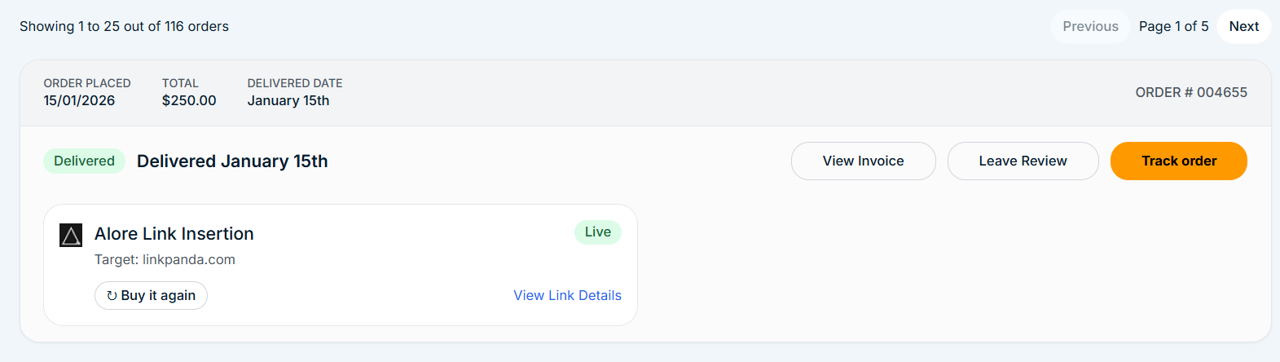
Below the header, the card shows the order status badge and delivery confirmation, followed by a list of individual link placements within that order. Each placement shows the referring domain name, the product type (for example Alore Link Insertion), the target domain, and a Live or Processing status badge.
Order Status
Each order card displays a status badge reflecting where the order currently stands. There are two order-level statuses:
Actions Available on Each Order
Each delivered order card provides three action buttons:
View Invoice
Opens the invoice for that order. You can view, save, or download the invoice for your records or accounting purposes.
Leave Review
Allows you to leave a review for the order once it has been delivered. LinkPanda values client feedback and uses it to maintain the quality of its services.
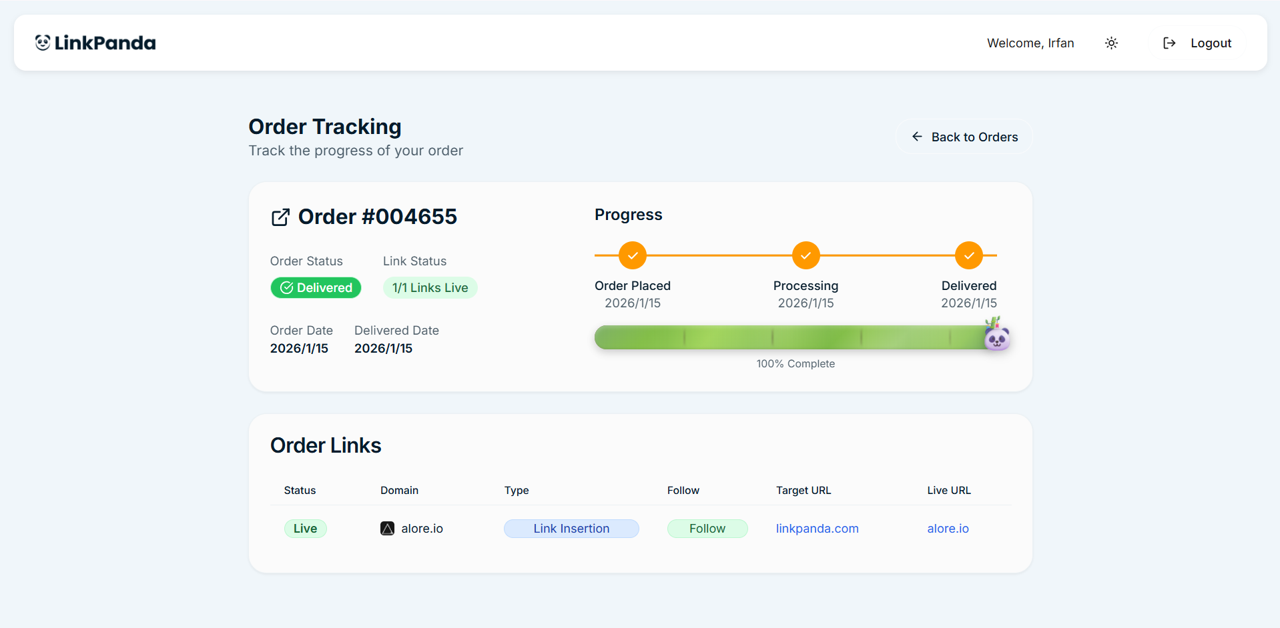
Track Order
Opens a dedicated order tracking page for that specific order. The tracking page shows the full delivery progress bar, order status, link details including status, type, follow type, target URL, and live URL. This page can also be shared with clients or colleagues who need visibility over an order without needing to log in to the app.
Within each placement listed on the order card, there are also two further options:
- Buy it again: Quickly re-order the same placement from the same referring domain.
- View Link Details: Opens the Link Details side panel for that specific placement, showing the full product summary, delivery status progress bar with timestamps, order information (Order ID, Link Type, Follow Type, Referring Domain, Anchor Text, Live URL, Target URL), and a timestamped Order History log. Times in the Order History are shown in your local timezone.
Link Details Side Panel
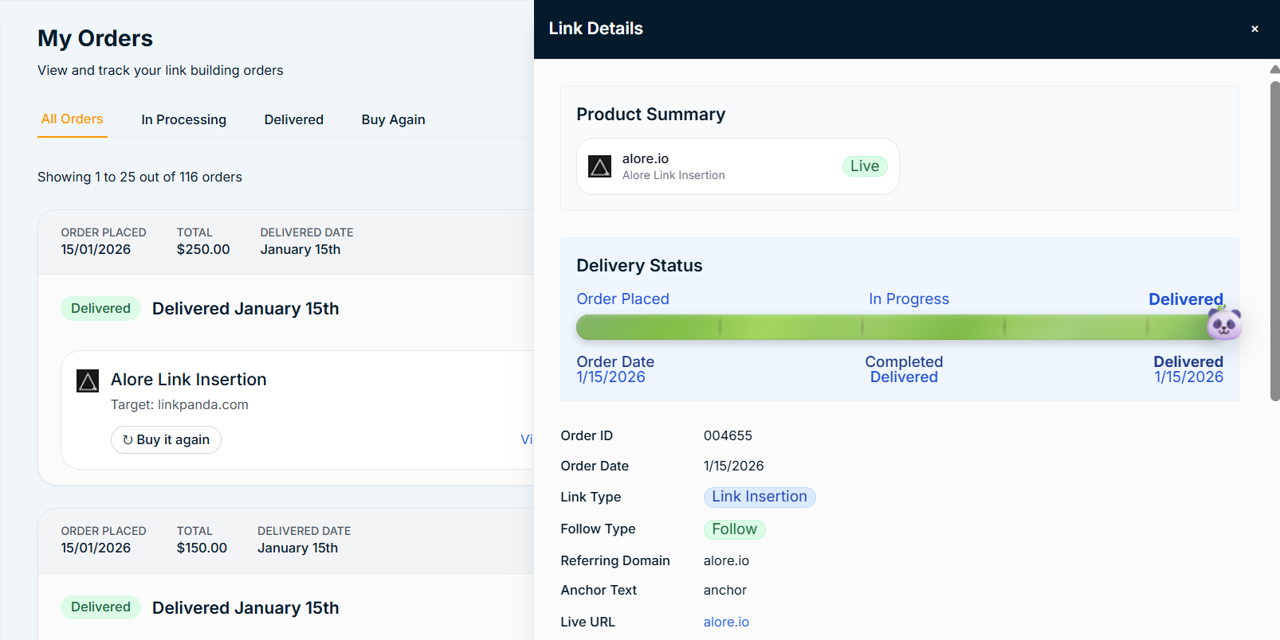
Clicking View Link Details on any placement opens a side panel with the complete record for that individual link. The panel is divided into four sections:
- Product Summary: The referring domain, product name, and a Live or Processing status badge.
- Delivery Status: A visual progress bar showing the three stages of the order: Order Placed, In Progress, and Delivered, each with a date stamp.
- Order Information: Full details of the link including Order ID, Order Date, Link Type, Follow Type, Referring Domain, Anchor Text, Live URL, and Target URL.
- Order History: A timestamped event log showing exactly when each stage was reached, with times displayed in your local timezone.
Searching Your Orders
A search bar at the top right of the My Orders page allows you to search across all your orders. Use it to find a specific order by referring domain, order number, or product name without needing to scroll through the full list.