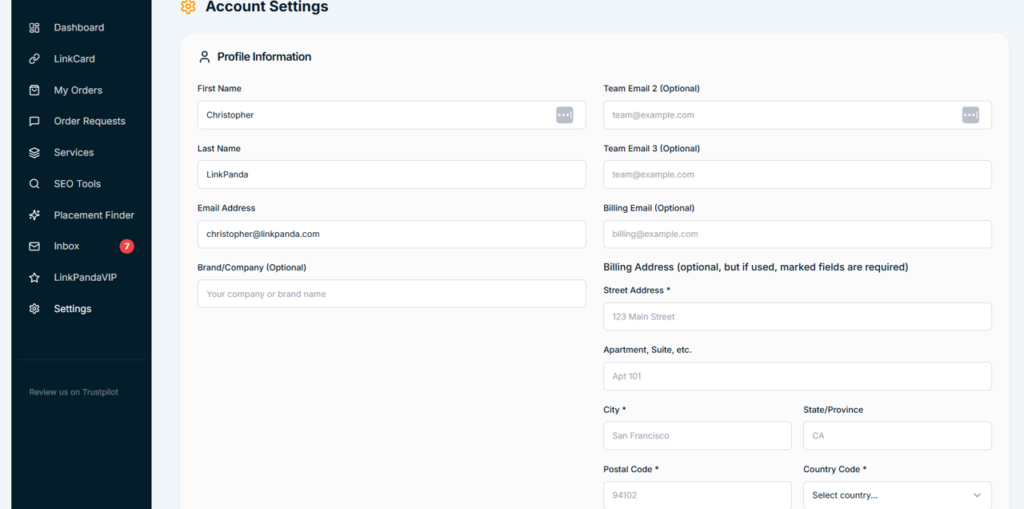
A complete guide to configuring your LinkPanda account, including profile information, team access, billing details, preferences, and password management.
Before placing your first order, it is worth taking a few minutes to complete your account profile. A fully configured account ensures that invoices, order confirmations, and team communications all carry the correct details. You can access your settings at any time by clicking Settings in the left sidebar.
How to Access Account Settings
To open your Account Settings, click Settings at the bottom of the left sidebar navigation. The Settings page is divided into three main sections: Profile Information, Preferences, and Change Password. Each section is described in full below.
Profile Information
The Profile Information section is where you manage your personal details, team access emails, and billing information. All changes must be saved by clicking the Save Profile button at the bottom of the section.
Personal Details
These fields identify who the account belongs to and appear on order confirmations and communications from your account manager.
First Name
Your first name as you would like it to appear on account communications and order records.
Last Name
Your last name or surname.
Email Address
Your primary account email address. This is the address used for login and for receiving order updates and communications from the LinkPanda team.
Brand / Company (Optional)
Your company or brand name. This appears on invoices and billing documents. If you are ordering on behalf of a business, it is recommended to fill this in.
Team Email Access
The LinkPanda App allows you to add additional email addresses so that colleagues or clients can also access the account. This is useful for agencies or teams where multiple people need visibility over orders and link tracking.
A second email address that can be used to log in to the account. Ideal for adding a colleague or account manager who needs access to orders and LinkCards.
A third email address for an additional team member or client who needs access to the account.
Billing Information
The billing fields are used to generate accurate invoices for your orders. The billing address is optional overall, but if you choose to fill it in, the fields marked with an asterisk are required.
A separate email address for receiving invoices. If left blank, invoices will be sent to your primary account email address. This is useful if your finance team uses a different email for billing purposes.
The first line of your billing address, for example your building number and street name.
An optional second line for your address, such as a floor number, suite, or unit identifier.
The city associated with your billing address.
Your state, province, or region.
Your postal or ZIP code.
Select your country from the dropdown. This ensures your invoices are correctly formatted for your region.
Once you have filled in your profile and billing details, click the Save Profile button to apply your changes.
Preferences
The Preferences section lets you customise how the LinkPanda App displays information. These settings are saved to your account and persist across devices and sessions.
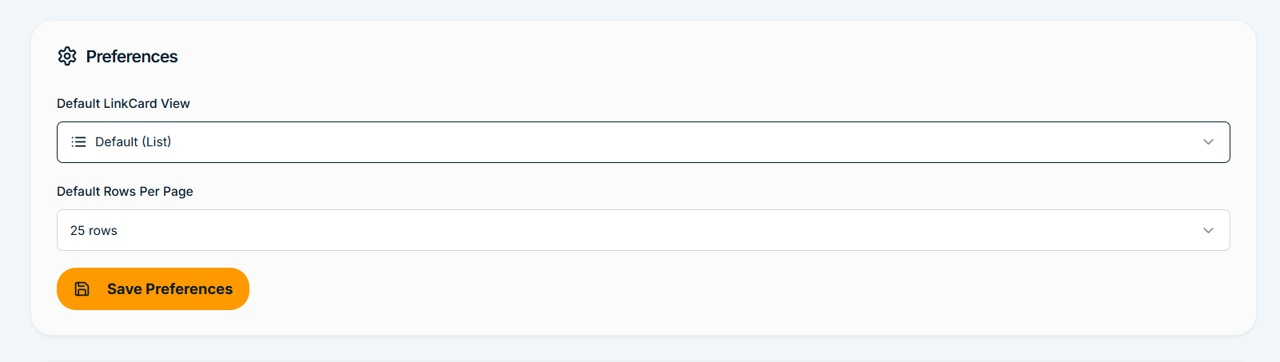
Default LinkCard View
This setting controls how your LinkCards are displayed by default when you open them. There are two view options available:
- Default (List): Displays your tracked backlinks in a standard table list format, showing Live URL, Anchor Text, and Target URL in rows. This is the recommended view for reviewing and searching through large numbers of links.
- Widget: Displays your LinkCard content in a widget-style card layout, which gives a more visual overview of your backlinks.
Select your preferred view from the dropdown and click Save Preferences to apply it.
Default Rows Per Page
This setting controls how many backlinks are displayed per page when viewing a LinkCard. You can choose from the following options:
- 25 rows
- 50 rows
- 100 rows (default)
- 200 rows
If you have a large number of tracked backlinks, setting this to 200 rows per page can reduce the amount of pagination needed. If you prefer a more focused view, 25 or 50 rows keeps the list concise. Click Save Preferences after making your selection.
Change Password
The Change Password section allows you to update your account password at any time. To change your password, fill in the following three fields and click the Change Password button.
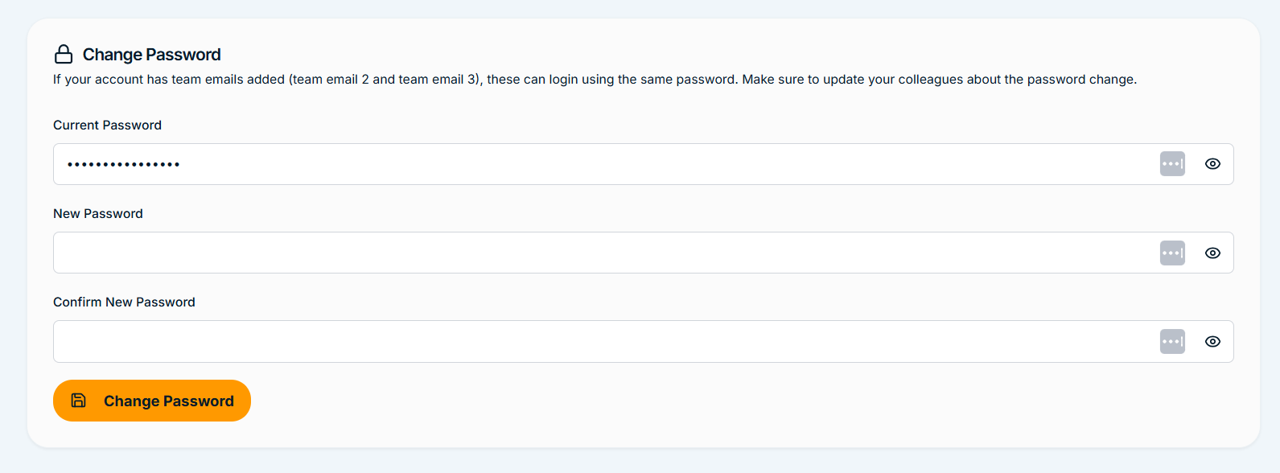
Enter your existing password to verify your identity before making a change.
Enter the new password you would like to use. Choose a strong password that is unique to this account.
Re-enter your new password to confirm it. Both entries must match before the change can be saved.
Note about team access: If your account has Team Email 2 or Team Email 3 added, those colleagues log in using the same password as the primary account holder. Changing your password will affect their ability to log in, so make sure to communicate any password changes to your team promptly.
Recommended Setup Checklist
Here is a quick checklist to make sure your account is fully configured before you start ordering:
- Enter your first and last name
- Confirm your primary email address is correct
- Add your company or brand name if ordering on behalf of a business
- Add Team Email 2 and Team Email 3 if colleagues need access
- Add a Billing Email if invoices should go to a separate address
- Fill in your billing address if you need formal invoices
- Set your preferred Default LinkCard View in Preferences
- Set your preferred Default Rows Per Page in Preferences
- Click Save Profile and Save Preferences to store your changes
Need Help?
Email: info@linkpanda.com
Contact: linkpanda.com/contact