
A complete guide to sorting, filtering, and resizing columns in your LinkCard to find exactly what you need across your backlink portfolio.
How Sorting Works
Clicking any column header that supports sorting will sort the entire LinkCard table by that column. Clicking the same header again reverses the sort order. Sortable columns display a small arrow indicator when active. Most columns support alphabetical sorting (A to Z or Z to A), while date-based columns sort chronologically.
How Filtering Works
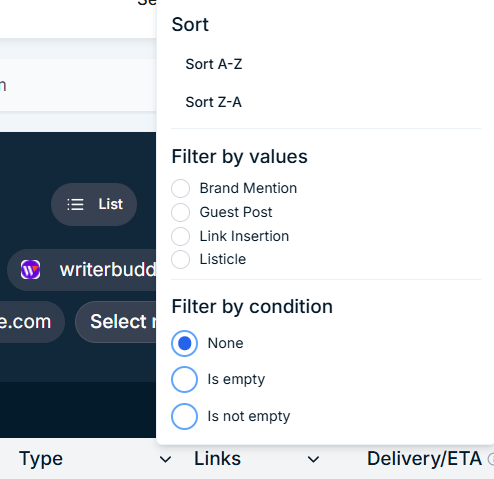
Columns that support filtering show a downward arrow or filter icon in the column header. Clicking this opens a filter panel for that column. Depending on the column type, filters are either value-based (where you select from a list of available options) or condition-based (where you define a text or date rule). Some columns offer both.
Filters can be combined across multiple columns at the same time, allowing you to build precise views of your link portfolio, for example showing only Guest Posts that are Live for a specific target domain within a given date range.
Column-by-Column Reference
Below is a full breakdown of the sorting and filtering options available for each column in the LinkCard.
Order No.
Sortable
Sortable A to Z or Z to A. Clicking the order number itself opens the order details side panel rather than triggering a sort. Use the column header to sort.
While a link is processing, the Delivery / ETA column in your LinkCard will show the estimated delivery date in the format ETA: YYYY/M/DD. This gives you an indication of when the link is expected to go live.
You do not need to take any action while a link is in Processing status. The LinkPanda team manages the entire placement process and will update the status automatically once the link is confirmed live.
Order Date
Sortable Filterable
Sortable chronologically. The date filter offers four conditions:
- Date is — show links from an exact date
- Date is before — show links placed before a specified date
- Date is after — show links placed after a specified date
- Date is between — show links placed within a specific date range
This is the recommended column to use when filtering by time period, as the Delivery / ETA column does not support filtering.
Month/Year
Sortable Filterable
Sortable A to Z or Z to A. The filter allows you to select one or more specific months from a list of available months, for example 01/2026, 12/2025, 11/2025. This is useful for reviewing all links placed during a particular campaign month without needing to enter a manual date range.
Your Domain
Sortable Filterable
Sortable A to Z or Z to A. The filter lets you select one or multiple target domains from a dropdown list, so you can focus the view on links pointing to specific websites. This is an alternative to using the By Domain tab toggle if you want to view links for several domains simultaneously.
Icon
Displays the favicon of the referring domain for quick visual identification. This column does not support sorting or filtering.
Referring Domain
Sortable Filterable
Sortable A to Z or Z to A. Offers both value-based and condition-based filtering. The condition filter includes:
- Text contains
- Text does not contain
- Text starts with
- Text ends with
- Text is exactly
- Is empty / Is not empty
Use this column to search for links placed on a specific referring domain, or to exclude a domain from your view.
Type
Sortable Filterable
Sortable A to Z or Z to A. Filter by one or more link types from the available values:
- Brand Mention
- Guest Post
- Link Insertion
- Listicle
- Citation
Also supports condition-based filtering with Is empty and Is not empty options. Useful for reviewing the composition of your link portfolio by type or comparing the volume of each placement type across campaigns.
Links (Link Status)
Sortable Filterable
Sortable A to Z or Z to A. Filter by link status value: Live or Processing. Also supports Is empty and Is not empty conditions.
Use this filter to view only links that are currently live, or to identify all links that are still being processed. Remember that link status refers to an individual backlink, which is separate from the overall order status. An order can contain multiple links, each with its own status.
Delivery/ ETA Date
This column cannot be sorted or filtered directly. It shows the estimated delivery date (ETA: YYYY/M/DD) for links still being processed, and the actual delivery date (DD: YYYY/M/DD) for links that are live. To filter by date, use the Order Date column instead.
Live Link
Sortable Filterable
Sortable A to Z or Z to A. Supports the full range of text-based filter conditions:
- Text contains
- Text does not contain
- Text starts with
- Text ends with
- Text is exactly
- Is empty / Is not empty
Useful for finding a specific placement page, or for identifying any link rows where a live URL has not yet been populated.
Anchor
Sortable Filterable
Sortable A to Z or Z to A. Supports all text-based filter conditions: Text contains, Text does not contain, Text starts with, Text ends with, Text is exactly, Is empty, and Is not empty. Use this to audit which anchor texts are being used across your campaign, or to find links using a specific anchor.
Target URL
Sortable Filterable
Sortable A to Z or Z to A. Supports all text-based filter conditions: Text contains, Text does not contain, Text starts with, Text ends with, Text is exactly, Is empty, and Is not empty. Use this to view all links pointing to a specific page on your website, such as a particular landing page or blog post.
Follow-Type
Sortable Filterable
Sortable A to Z or Z to A. Filter by value: Follow, Nofollow, or both. Also supports Is empty and Is not empty conditions. Use this to see a breakdown of dofollow versus nofollow links across your portfolio.
Resizing Columns
You can resize any column in the LinkCard table by hovering over the right edge of a column header until the resize cursor appears, then clicking and dragging left or right to adjust the width. This works in the same way as resizing columns in a spreadsheet.
Resizing columns is particularly useful when working with long URLs in the Live Link or Target URL columns, allowing you to widen those columns to read the full address without needing to scroll horizontally through the table.
Need Help?
If you have questions about finding or reviewing specific links in your account, your account manager is your first point of contact. Their email is shown at the top of your LinkCard.
General support: info@linkpanda.com
Contact: linkpanda.com/contact